

- CA Tracker
- CT Tracker
- DEX Tracker
- Streamflow Lock Tracker
- Truth Social Tracker
- News Feed
- Instagram Tracker
- Telegram Tracker
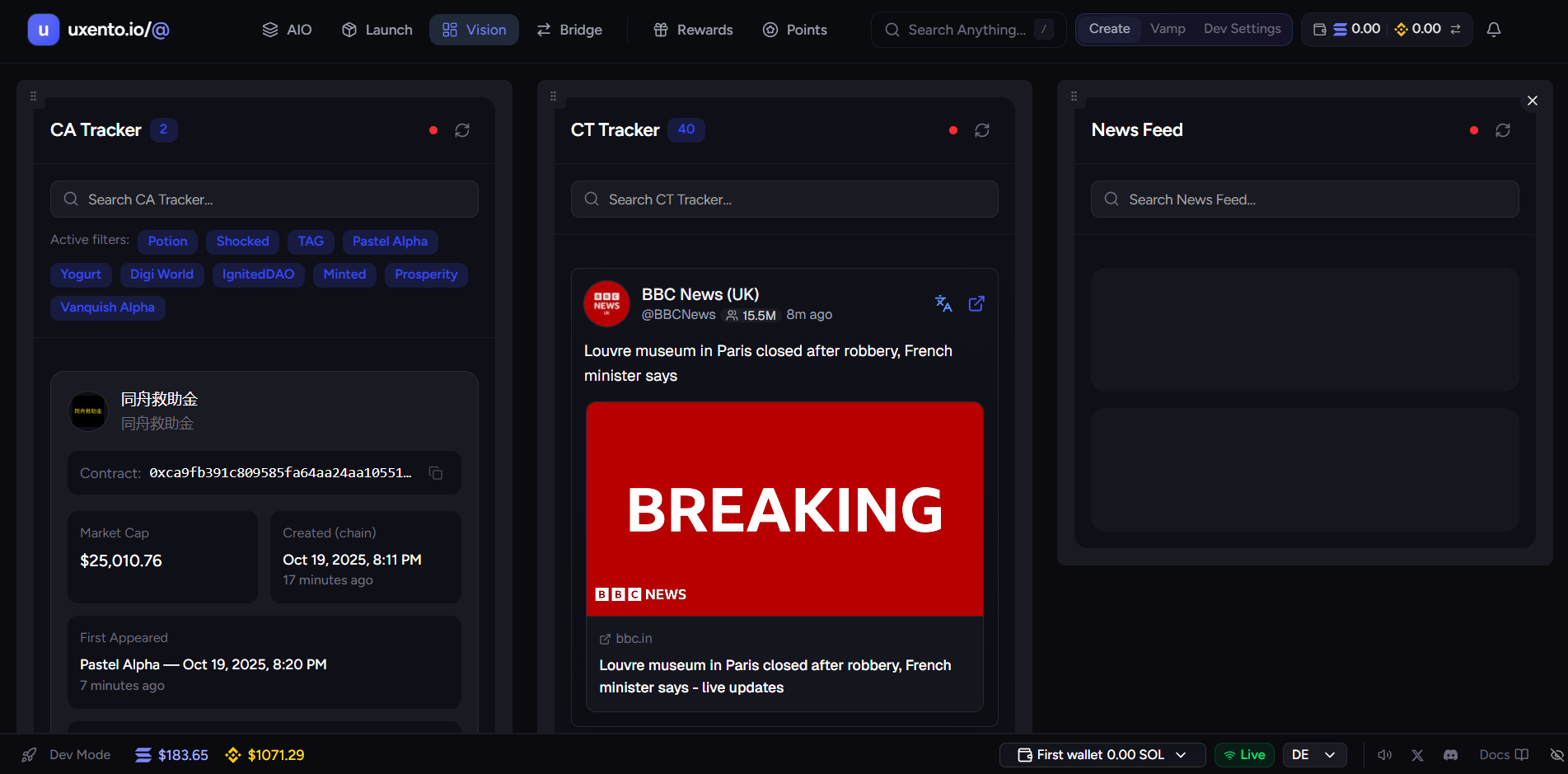
Uxento Vision features a range of resources making it an all-in-one free trenching tool.
How to access Uxento Vision:
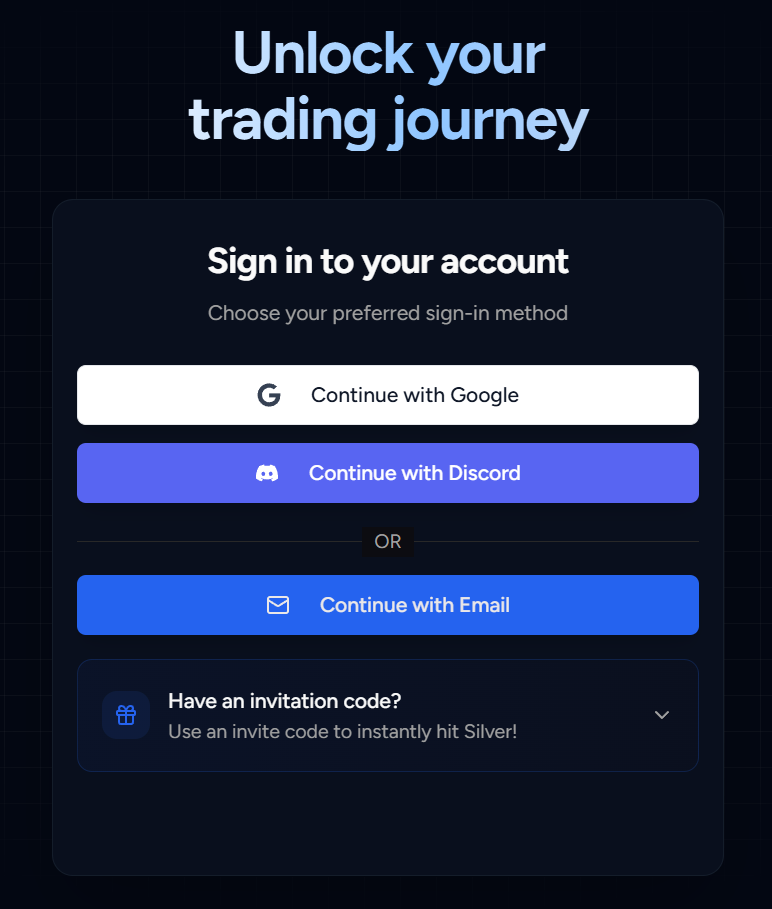
To access Uxento Vision via uxtension, click on the ‘Rocket’ icon when opening the uxtension extension on your toolbar. You may also access Uxento Vision without needing the uxtension extension downloaded via this link: https://uxento.io/login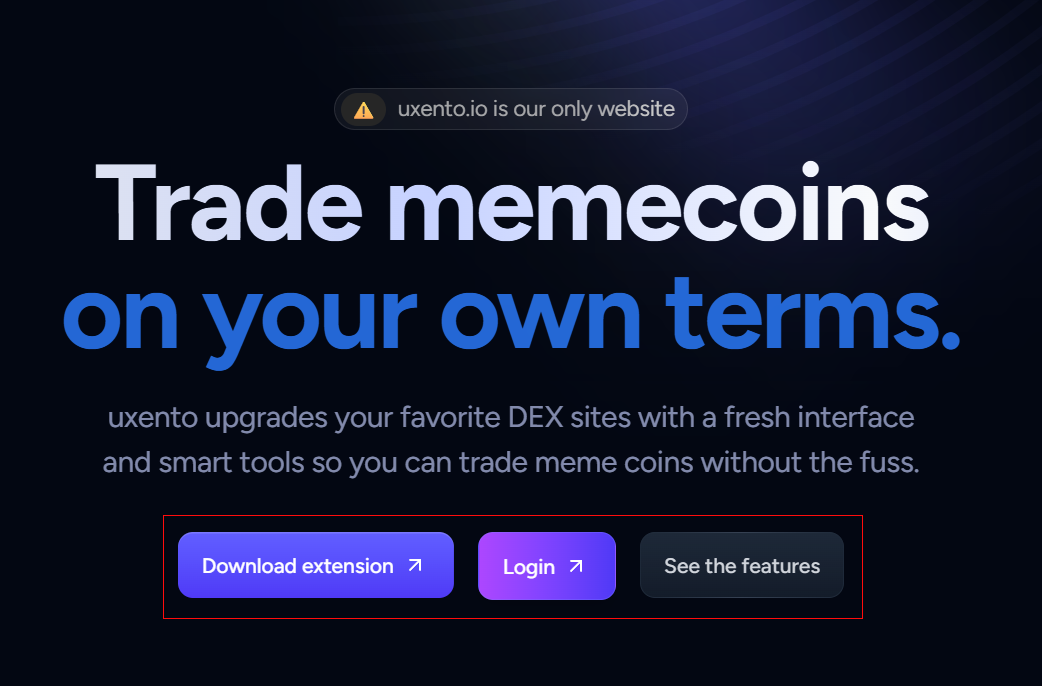
Tracker Cards:
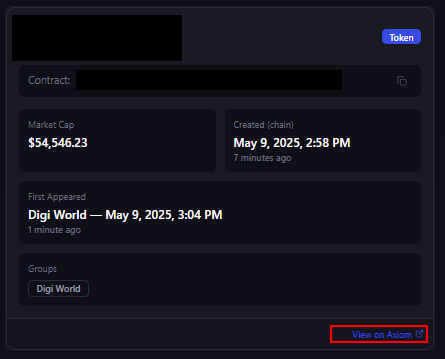
As alpha filters into Uxento Vision, they will be displayed as easy to view cards with relative information about the alpha being received, in the case of a coin your tracker card will display:- contract address
- market cap
- when the coin was created
- when the coin was called
- and a button that takes you directly to the coin’s page on Axiom/GMGN (BNB).
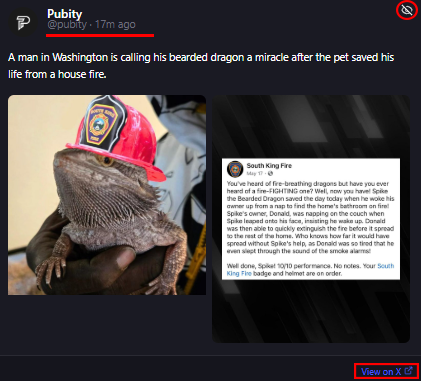
CA Tracker:
Uxento Vision’s CA tracker detects and displays any SOL/BNB contract addresses posted within any of the sourced alpha groups. Click here to learn more about the CA Tracker.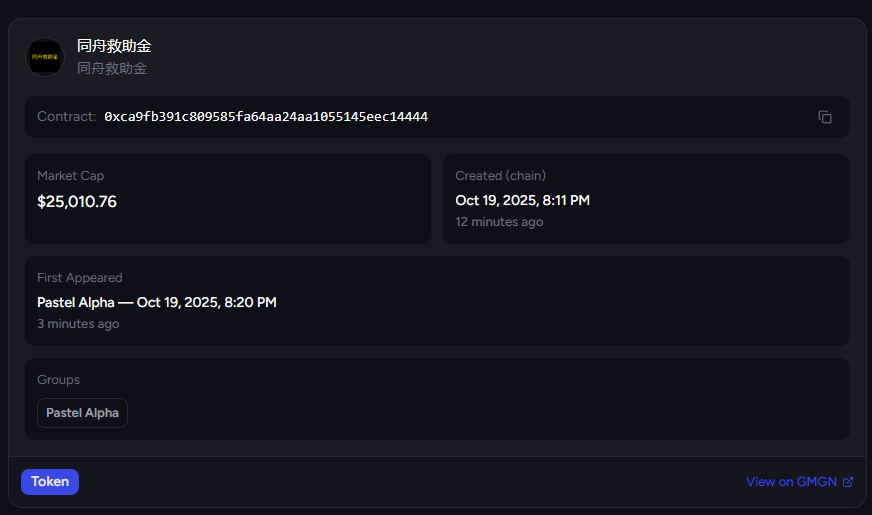
CA Tracker detecting a BNB Contract Address.
Silver & Gold:
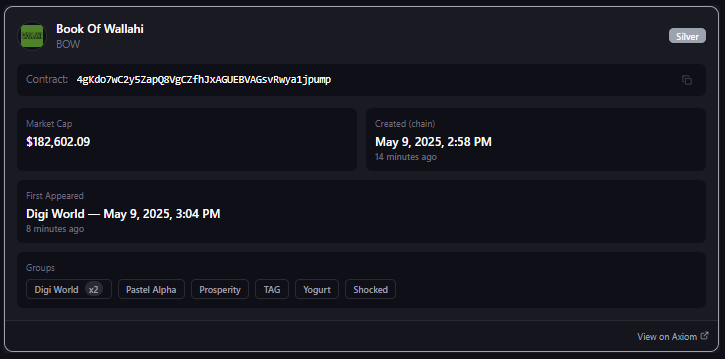
Coins outlined in silver show they've been posted 3+ times, with groups listed.
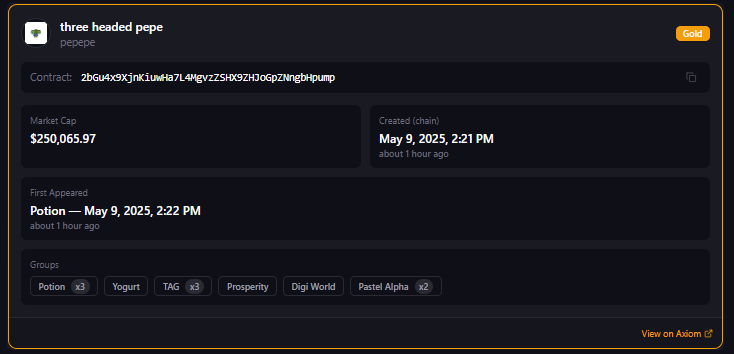
Coins outlined in silver show they've been posted 3+ times, with groups listed.
Filter Groups/Trackers:
You can filter which groups/trackers you do and don’t want to see using the Settings button. To access settings simply click the ‘Dev Settings’ button in the top right of your uxento homepage.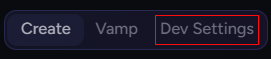
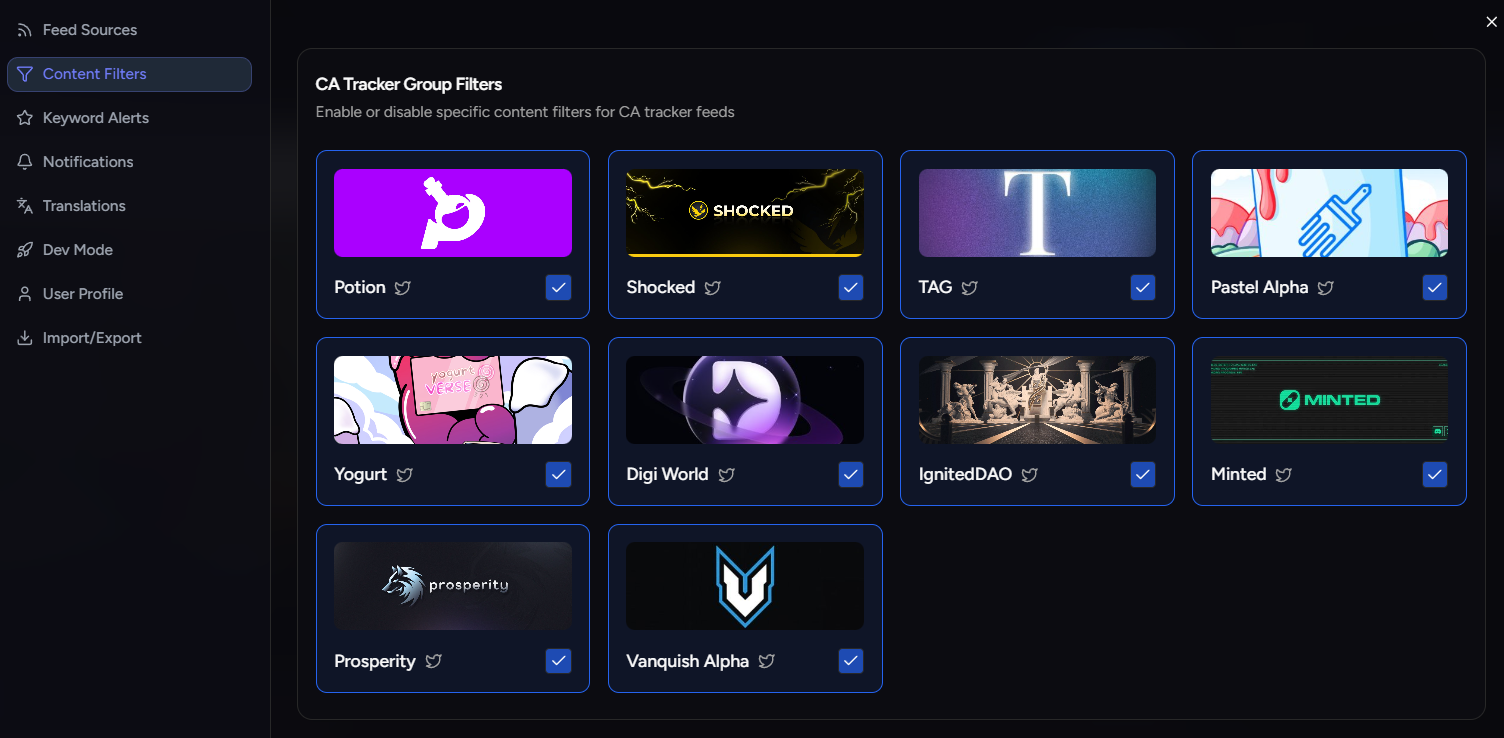
Tick/Untick As Needed
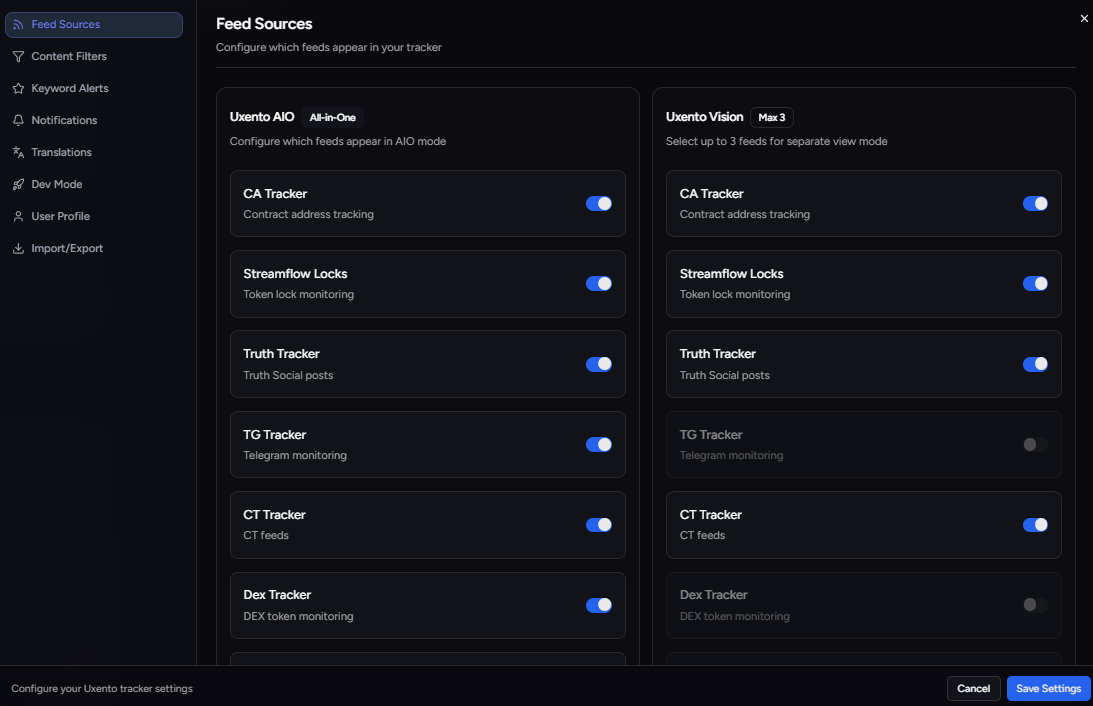
Uxento Vision allows for up to 3 trackers to be selected at once, to view more enable Uxento AIO.
Streamflow Lock Tracker:
Within Uxento Vision is a handy Streamflow Lock Tracker which provides data of token locks in real-time. Streamflow Tracker Cards contain a range of information including the amount/percentage of token locked, how long until tokens unlock, the permissions of the locking contract as well as a ‘View Contract’ button to easily view the contract in a new tab.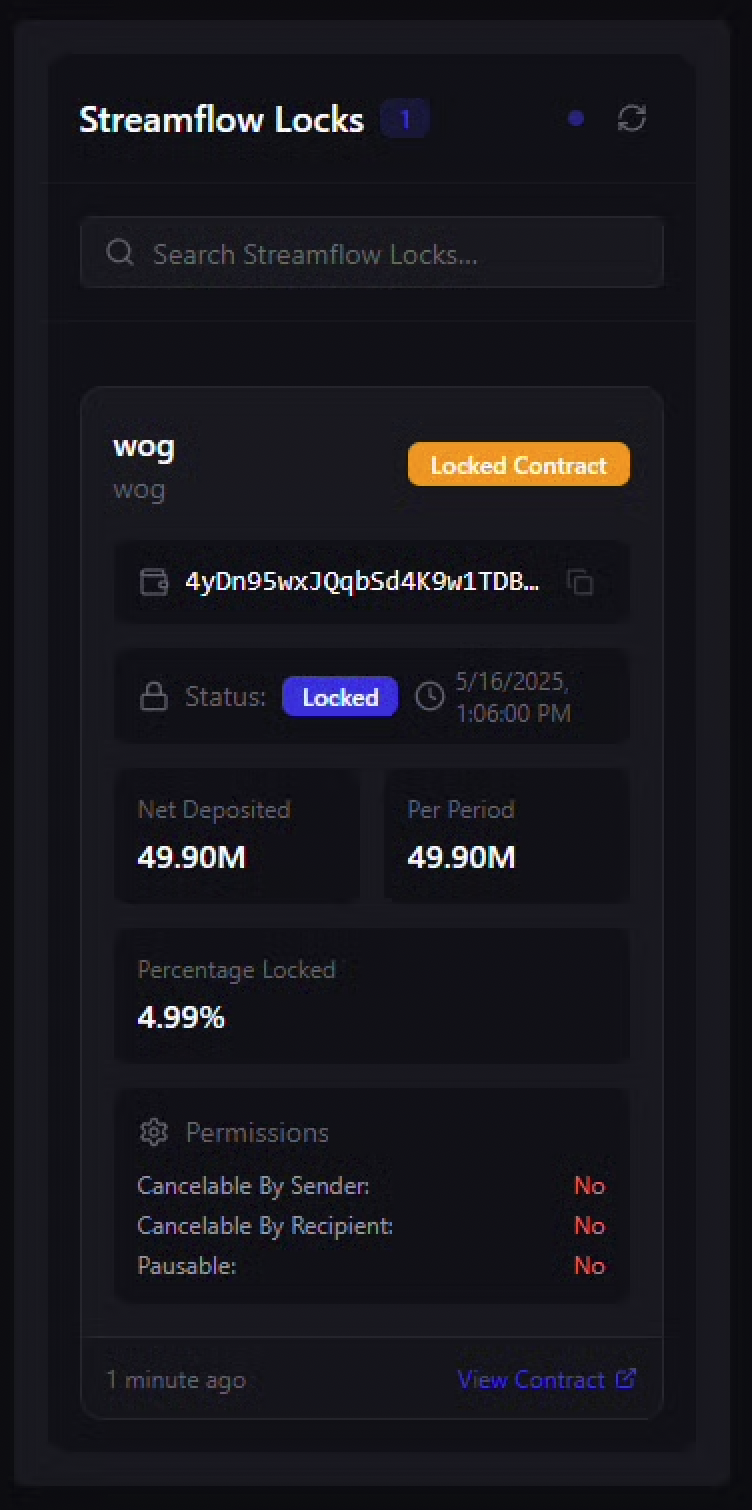
Streamflow Lock Tracker Card
Truth Social Tracker:
Uxento Vision also contains the fastest Truth Social Tracker, providing a real-time, zero delay feed of posts from tracked Truth Social Accounts.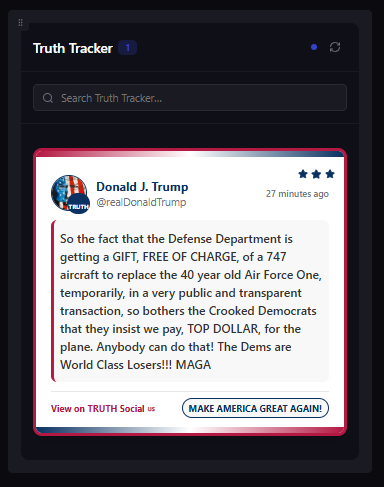
Uxento Truth Social Tracker Card
DEX Tracker:
Uxento Vision also comes complete with a DEX Tracker to stay alert when the DEX is paid across any Pump/Bonk token in real time.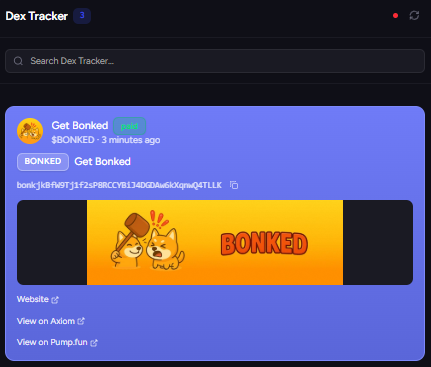
Dex Tracker Card
Instagram Tracker:
Uxento Vision also offers the fastest Instagram Tracker, allowing you to monitor posts and stories by popular accounts on Instagram in real time. The Instagram Tracker can be filtered via the Settings button to exclude/include certain accounts.News Feed:
Stay on top of breaking news and trending discussions with uxento’s curated News Feed. Much like the above offered trackers, News Feed allows you to focus on only posts from certified news outlets allowing you the possibility to front run news tweets by minutes, even hours. The News Feed can be filtered via the Settings button to exclude/include certain predetermined accounts.Filter Tracked CT Accounts:
The same way that you can filter groups and trackers, you are able to filter out tracked CT accounts per your focus. Simply navigate to the settings page and find CT Account Filters under the Content Filters pane. You can also use the quick buttons located in the top right of the pane for a range of quick actions:Enable All: Enable All Tracked AccountsDisable All: Disable All Tracked AccountsEnabled First: Display Enabled Accounts First (In List)Refresh: Refresh List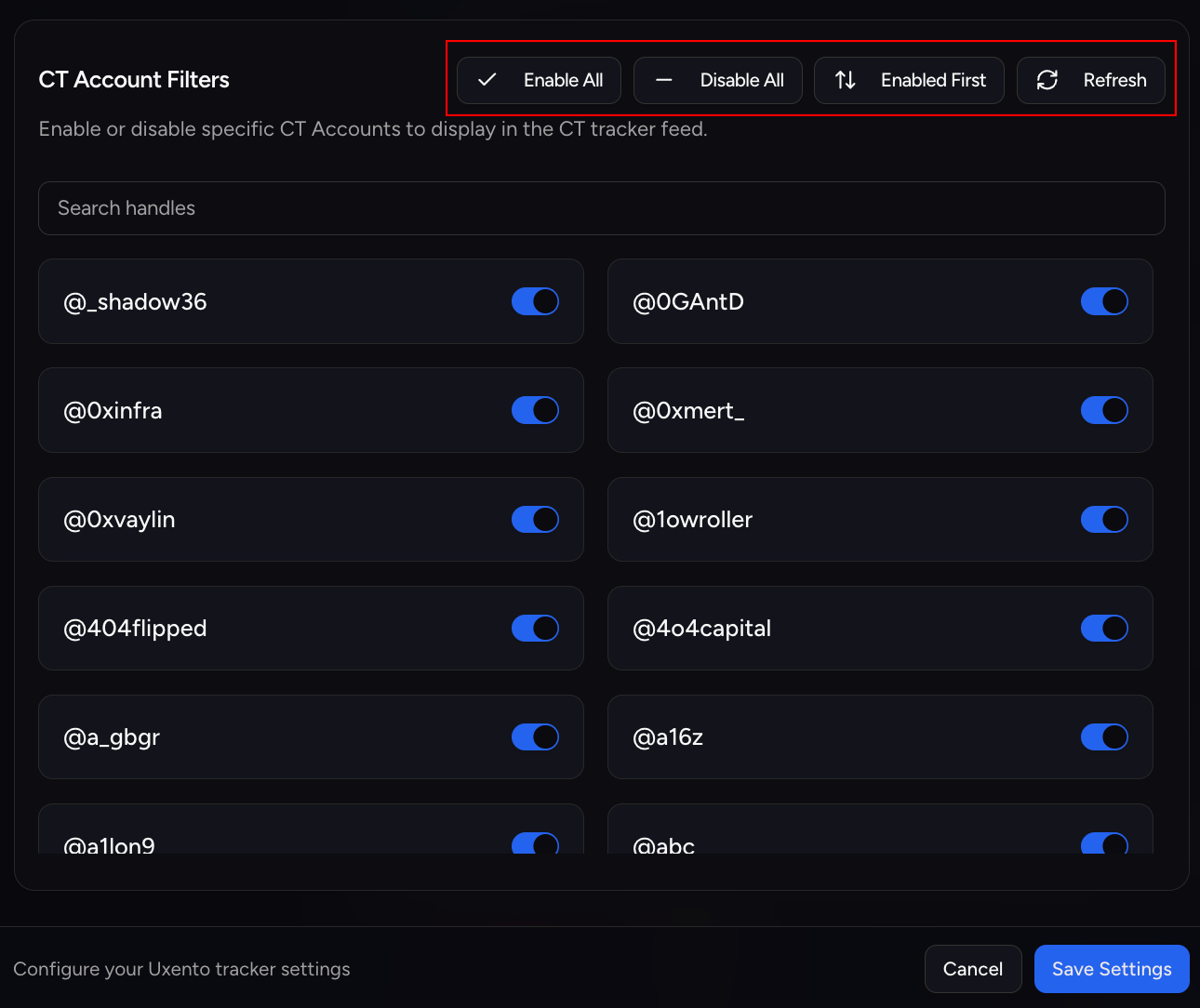
Filter Tracked Truth Social Accounts:
As with the above, you may also filter tracked accounts from Truth Social. Simply navigate to the settings page and find Truth Social Filters under the Content Filters pane.Filter Tracked Instagram Accounts:
As with the above, tracked Instagram accounts may also be filtered as desired. Simply navigate to the settings pane and find Instagram Account Filters under the Content Filters pane.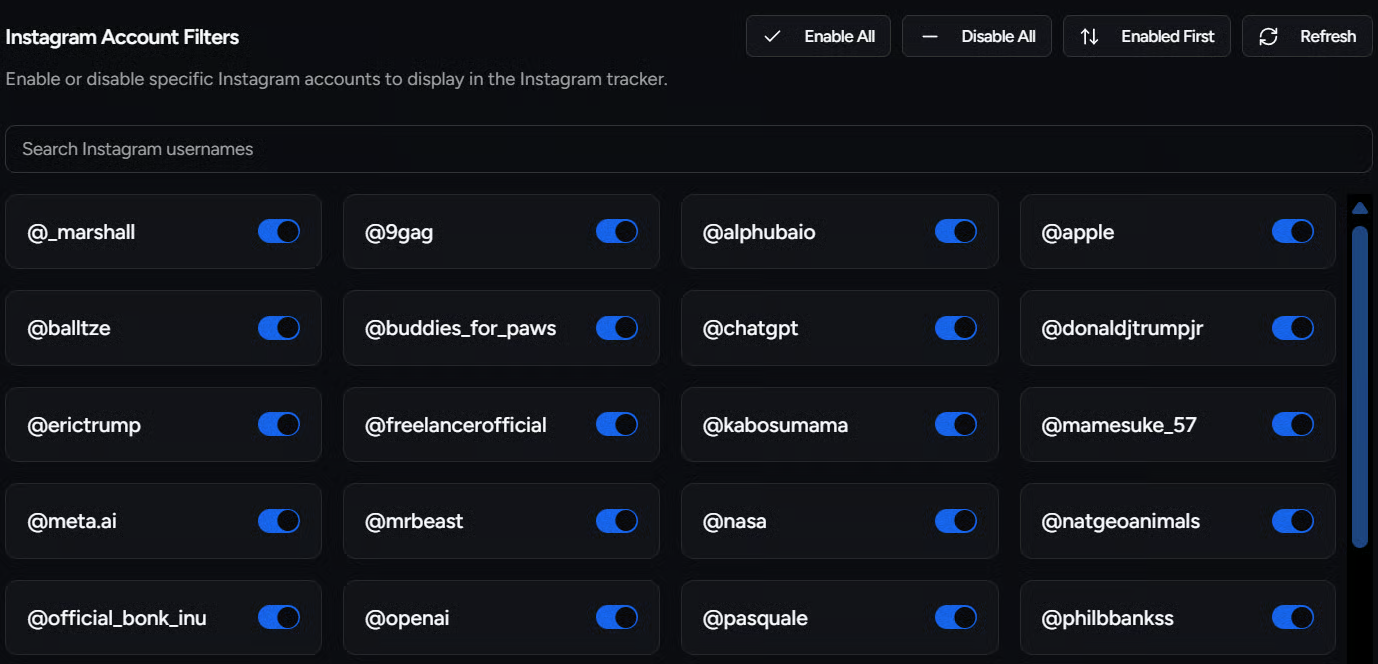
Tick and Untick as Needed!
Show uDev Sell Panel:
Within Uxento Vision you may easily view and manage any tokens held within your uDev Wallets via the Sell Panel which can be shown/hidden by pressing the ‘uDev Panel’ button at the bottom left of your uxento hompage.
Show Sell Panel Button
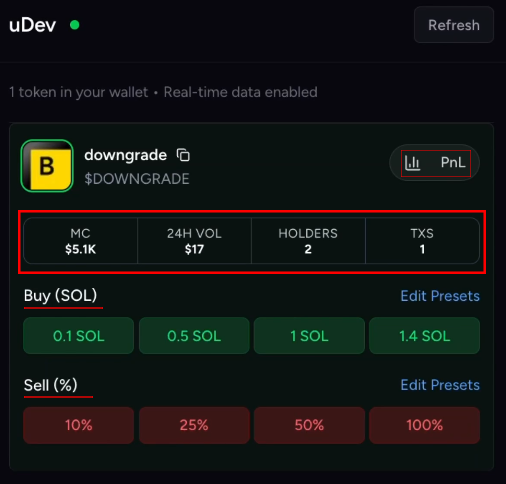
uDev Sell Panel
Uxento AIO (Swap Feeds):
With Uxento AIO you can combine all of the above trackers into one tab. By default, Uxento AIO is displayed to provide the most compact experience possible, but if you need to change between Vision/AIO or other panels you can do so by clicking the buttons in the tools panel located at the top of your uxento homepage, to swap between uxento tools.
The All-In-One Button in your tools panel
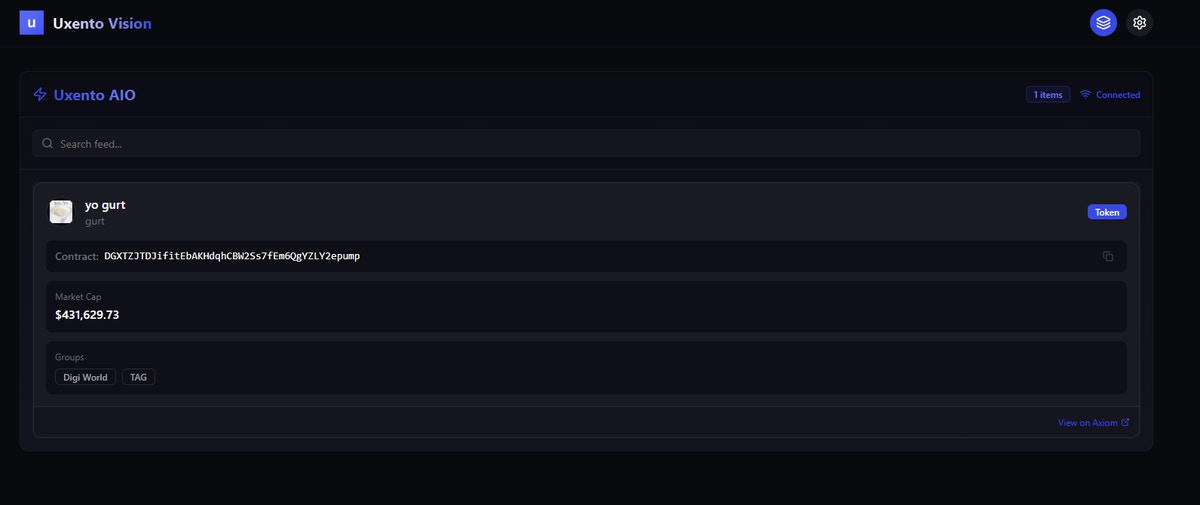
Uxento AIO In Action
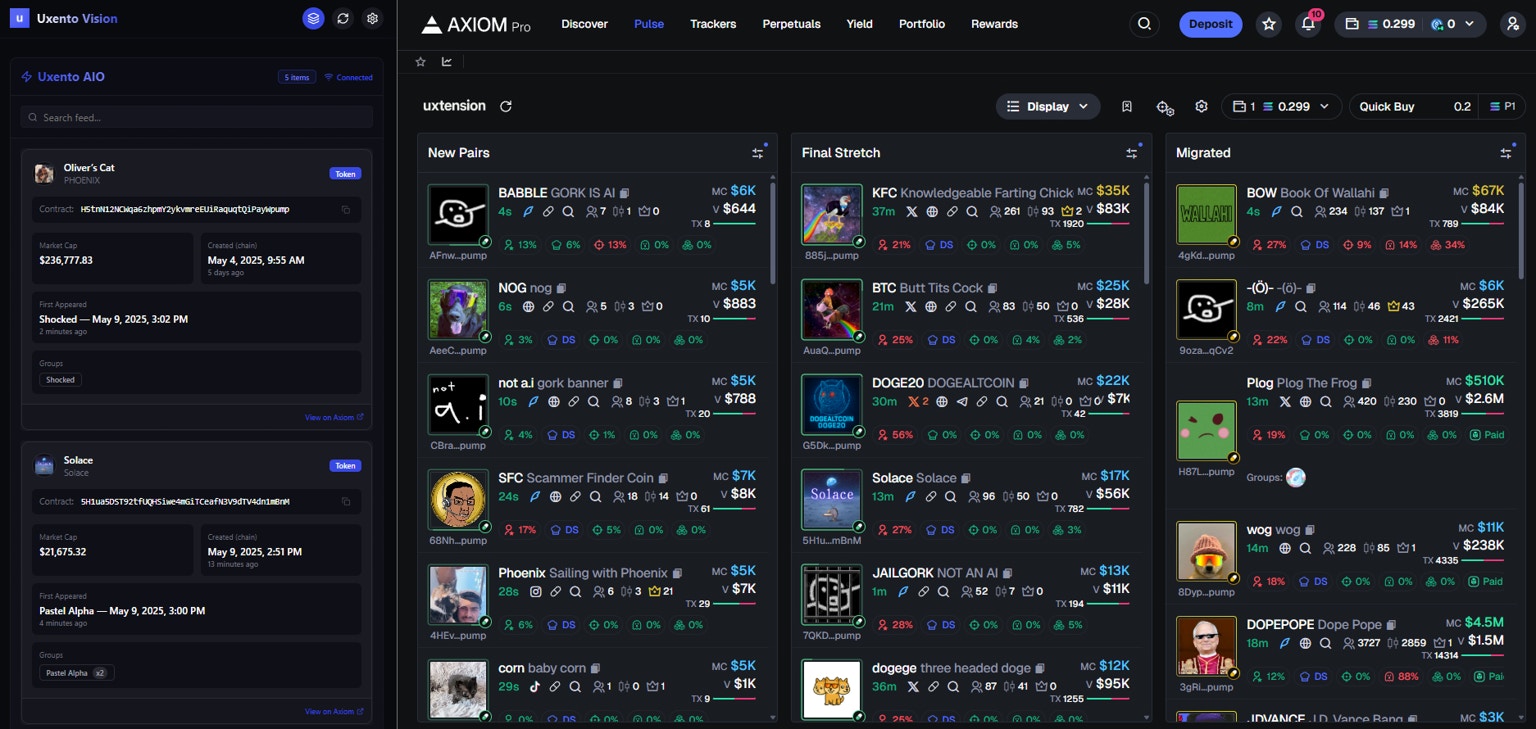
Uxento AIO allows you to easily sidebar Uxento Vision.
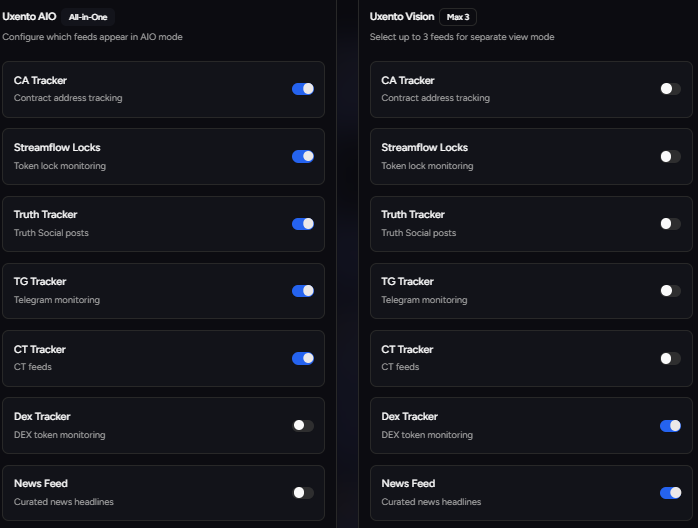
Tick/Untick as needed!
Search Anything:
You may use the ‘Search Anything’ function located at the top of your uxento homepage to find any tool, setting or page in uxento and more efficiently refine your settings. You may also click ’/’ on your keyboard to quickly open the search panel.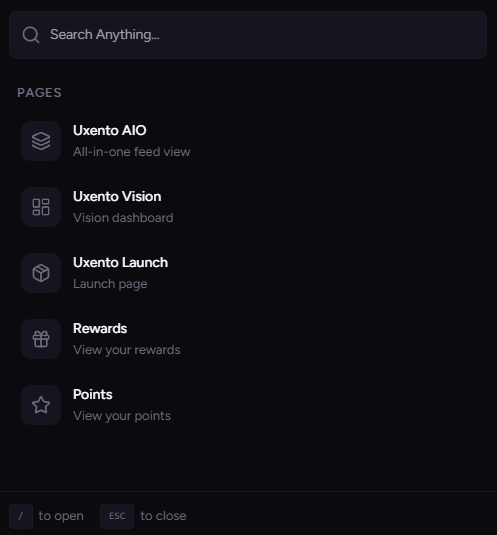
Search Anything
Pause Feed:
You can easily pause your All-In-One/Uxento Vision feed for better readability by hovering your mouse over the feed.AIO Reverse Order:
If you prefer to receive new alpha from the bottom up on your Uxento AIO feed, you can simply hit the Sort Order button located at the bottom of your uxento homepage.
Translate Content:
Uxento Vision contains a built-in translator for users to easily translate posts into their native or preferred language. To set-up Translations, navigate to the Translations Panel in the Uxento Vision Settings button (accessible via the drop down under your profile avatar) and using the drop down menu next to Translate Language you can choose from one of 34 languages to translate to.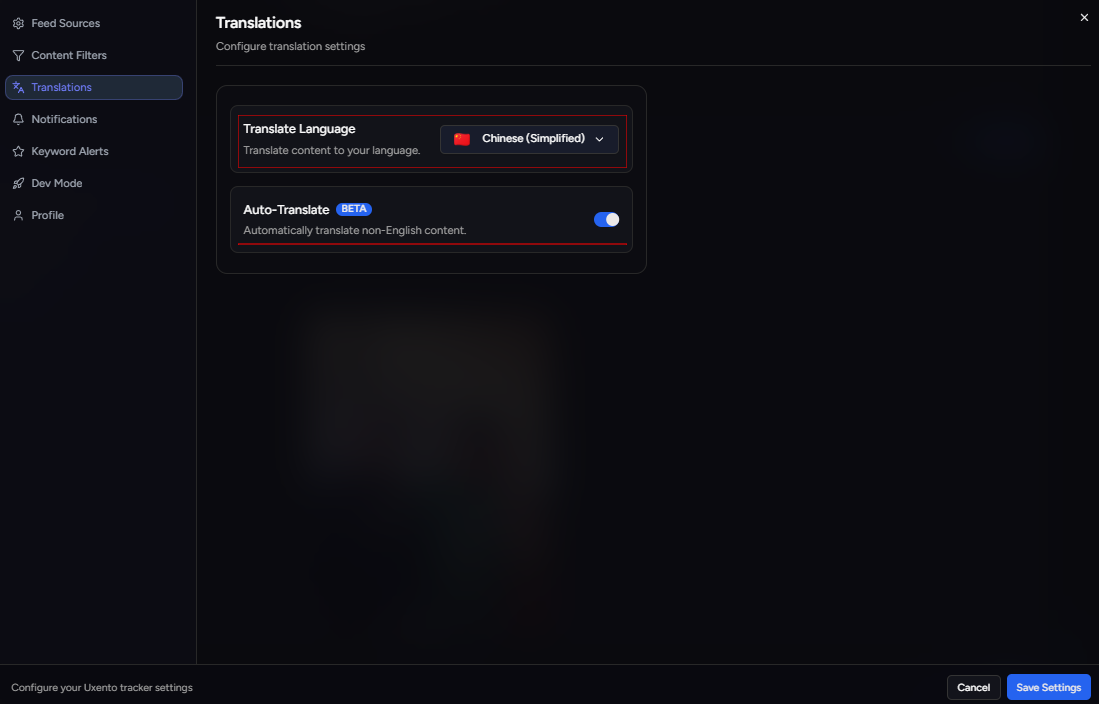
Notification Settings Button


Notification Sounds:
You can easily enable Notification Sounds within Uxento Vision to ensure you never miss a play. To do this, click the Settings button in Uxento Vision (as shown above), and then click the Notification Settings button.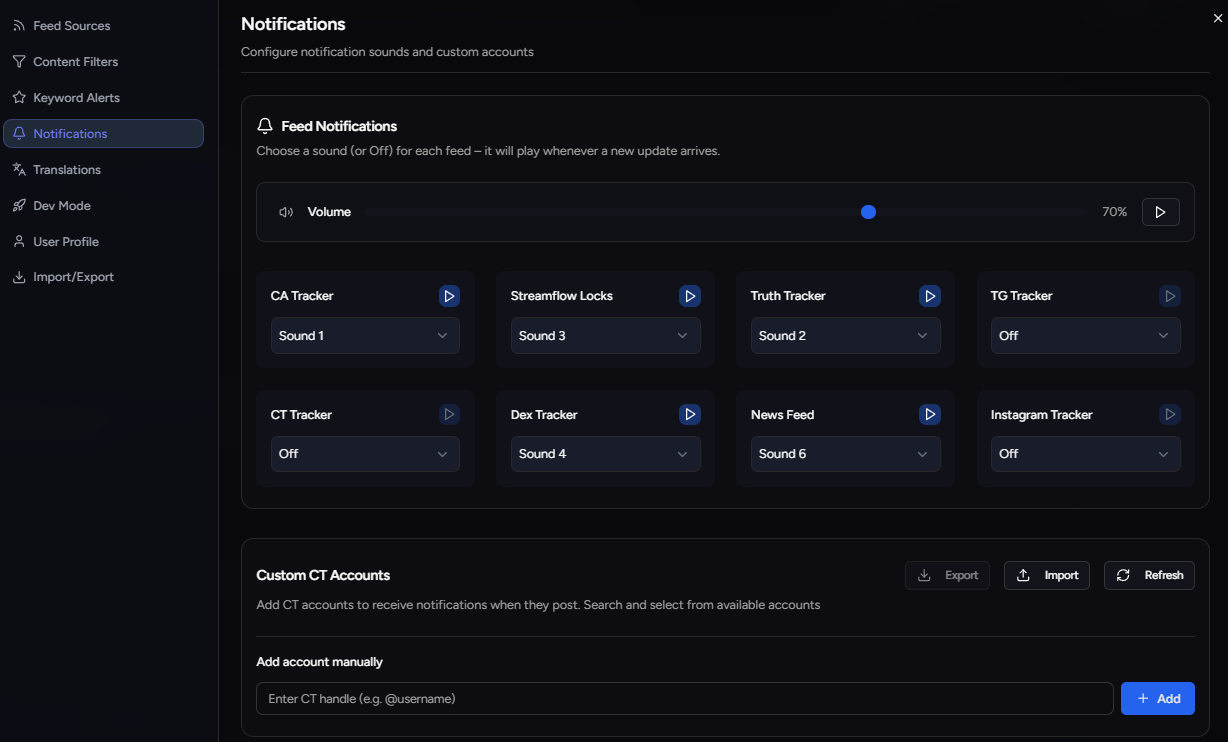
Notification Settings Button
Keyword Alerts:
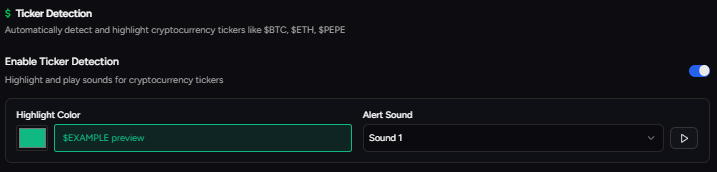
You may also get highlighted alerts and custom sounds when specific keywords appear in your feeds. To set this up, simply navigate to the Settings pane, and click on Keyword Alerts. Under this panel you can add:Ticker Detection:Automatically detects and highlights any cryptocurrency tickers such as $BTC, $ETH, $PEPE.
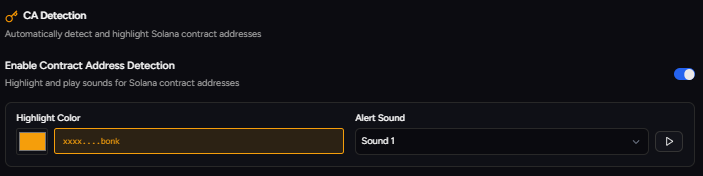
CA Detection:Automatically detect and highlight any posted Solana contract addresses.
Keyword Alerts:Create custom alerts for specific words or phrases in your feeds.
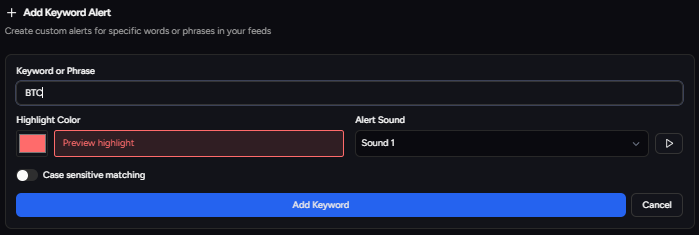
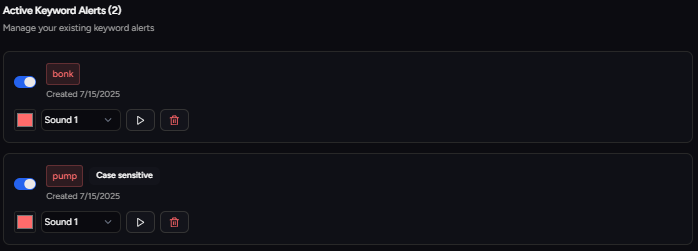
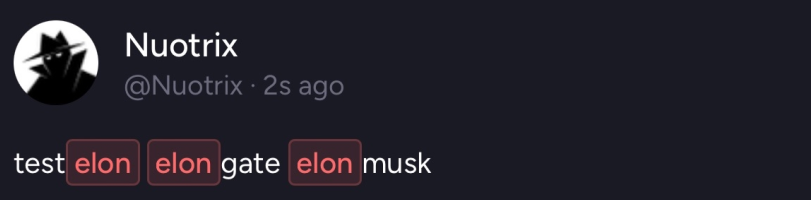
Partial = The word can be within other words and will still detect the keyword in it (e.g. ‘Elongate’). Simply select which type of alert you wish to set, by clicking Exact or Partial.
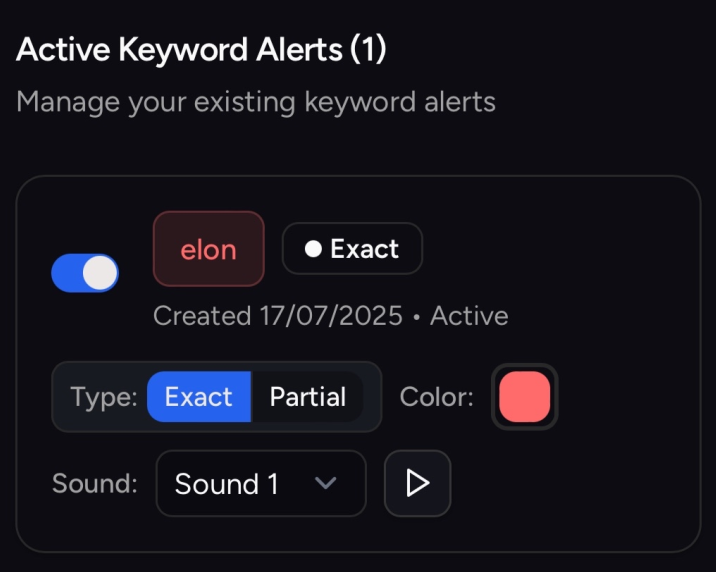
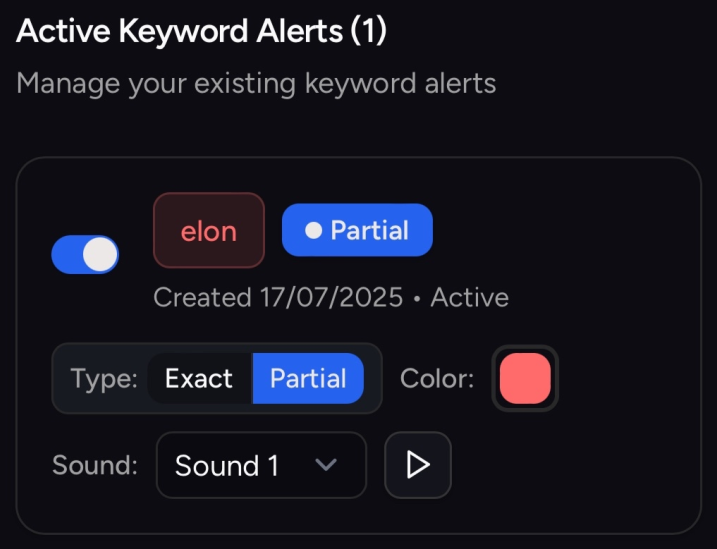
Exact vs Partial Keyword Detection
Export/Import CT Tracker Notifications:
You may export/import custom configurations for Uxento Vision’s CT Tracker so that you may share, or use other’s configurations. To do this, simply navigate to the Custom CT Accounts panel within your Notifications settings and click ‘Export’ to save your data as a .json file, or ‘Import’ if you have a .json file to import.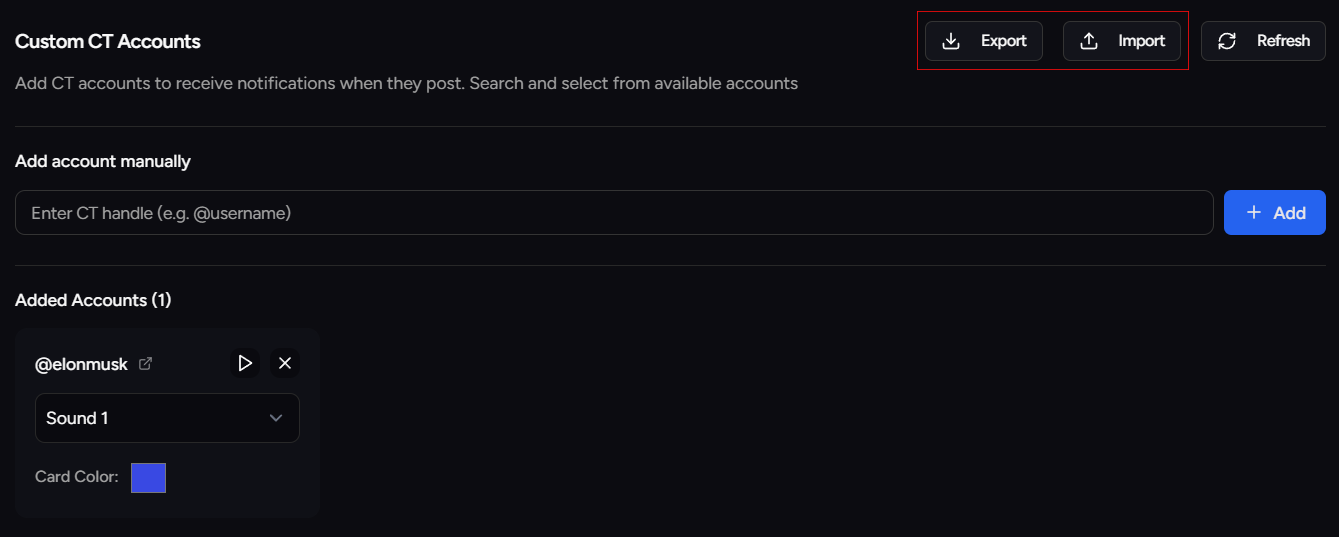
Click Import/Export
Profile Customization:
Within the settings menu under the Profile section, you may further customize your Uxento Vision/uDev profile as well as manage all devices currently logged into your uxento account.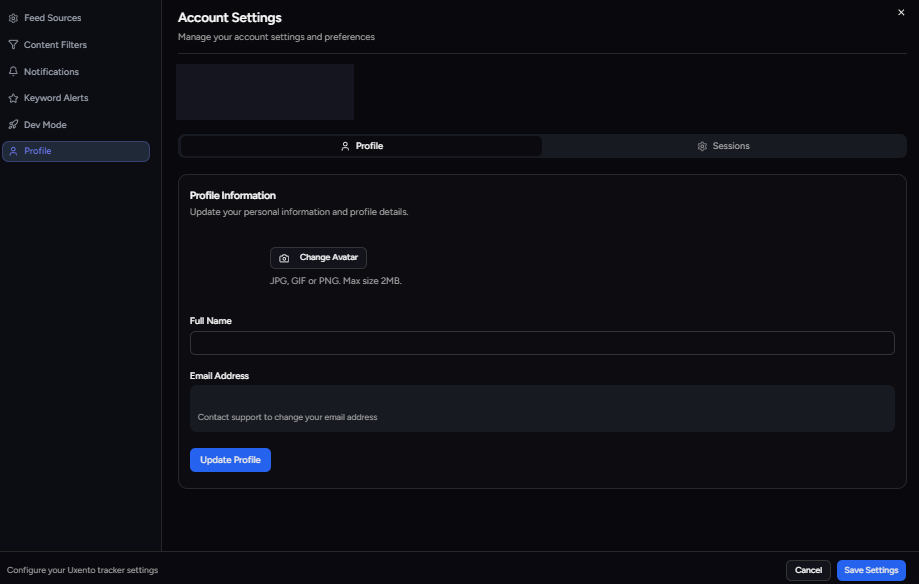
Profile Settings
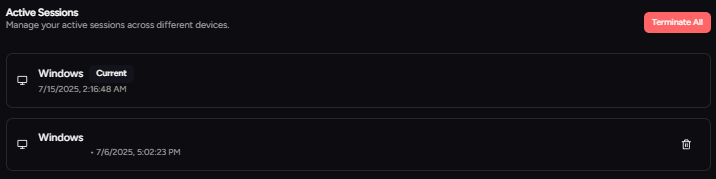
Active Sessions View