
Fees:
1.25% + Launchpad (Pumpfun/Bonkfun/Heaven/BagsApp) Fee = Creation 0.75% + Launchpad (Pumpfun/Bonkfun/Heaven/BagsApp) Fee = Buy/SellHow to Set Up uDev:
To set up uDev, firstly you must create a uDev account by registering with Google, Discord or an alternative email provider. Once you have completed registering via your preferred gateway, uDev will generate a developer wallet and a private key.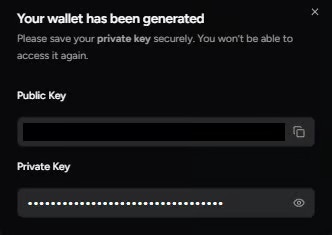
Your Generated Wallet
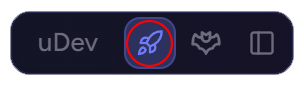
Dev Mode Button
How to Launch Coins with uDev:
To launch a coin with uDev, simply click the uDev button to be taken to the launcher which will allow you to customize your coin.
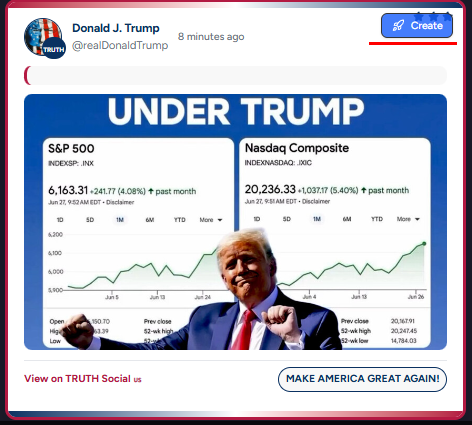
Create Coins with the uDev Button
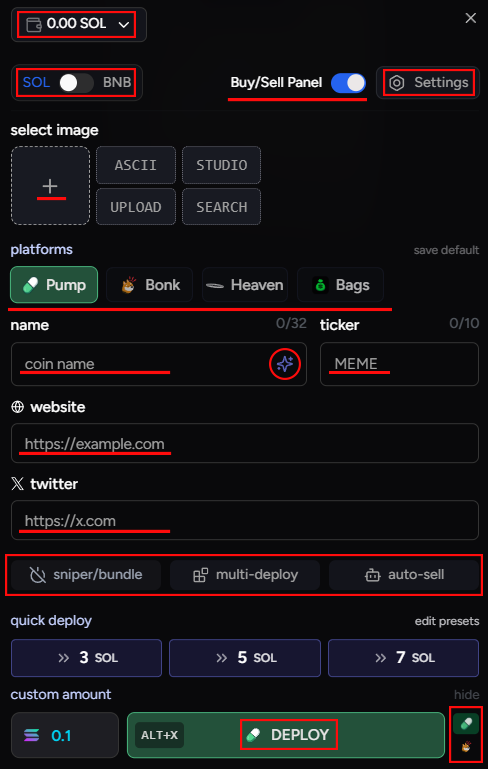
uDev Launch Module
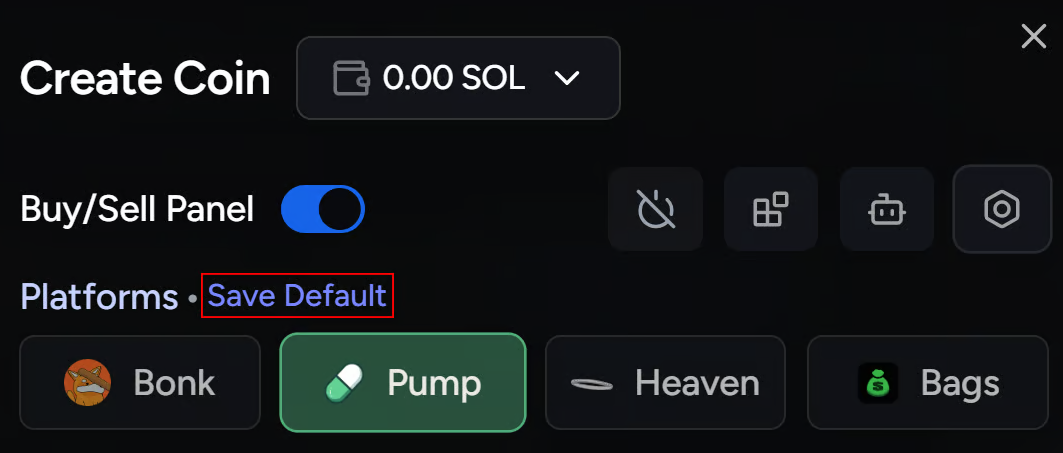
Save Default Platform
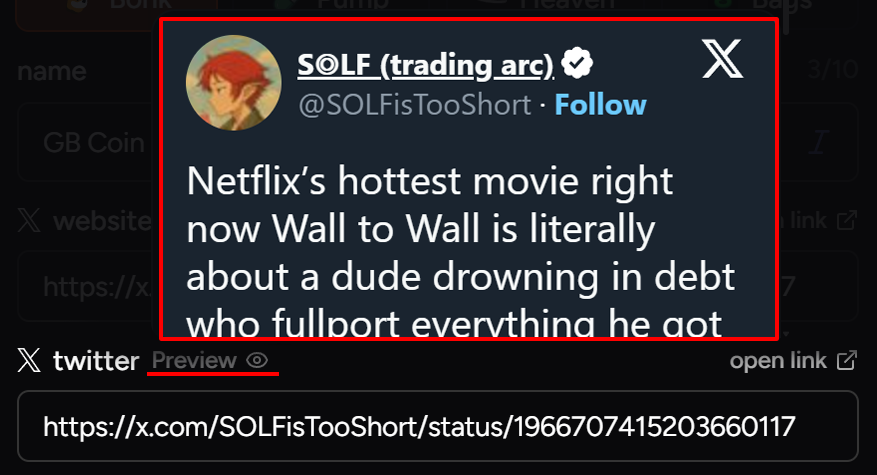
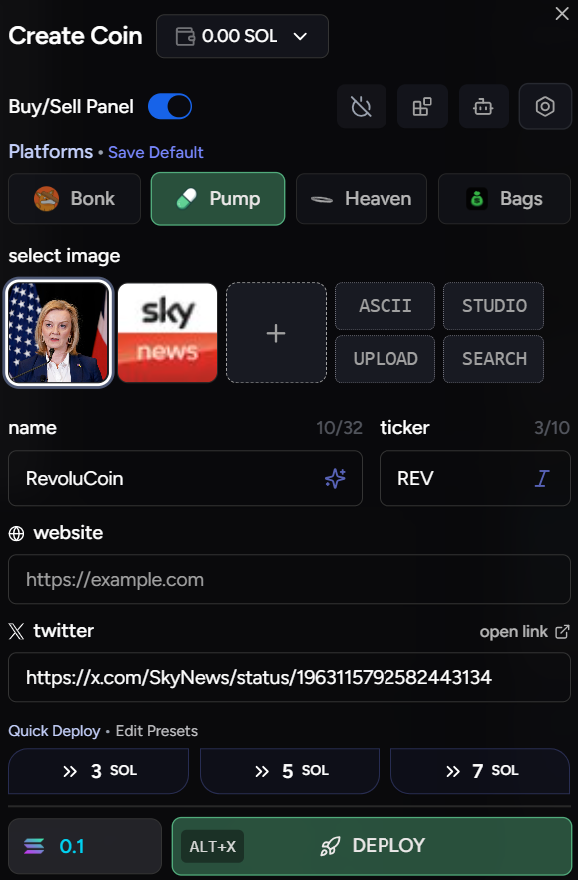
Auto-Populated uDev Launch Panel
How To Change Images in uDev:
While Images are automatically uploaded to uDev’s launcher, you can also upload your own image by dragging and dropping your image to the plus, or clicking on the plus button. When you click on the plus button, you will have to option to find images using the search bar, by inputting a URL or dragging and dropping an image into the field. You can also resize or crop your image by double clicking it when in the Launch Panel.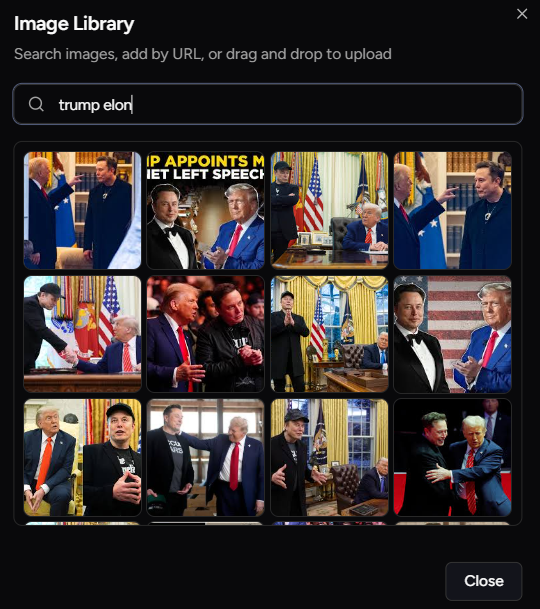
uDev's Image Library.
ASCII Art Generator:
Additionally, you may also use the custom ASCII Art Generator within the uDev Launch Panel to easily create ASCII Art for your coin. Simply click the ASCII button next to the Image Library in your uDev Launch Panel.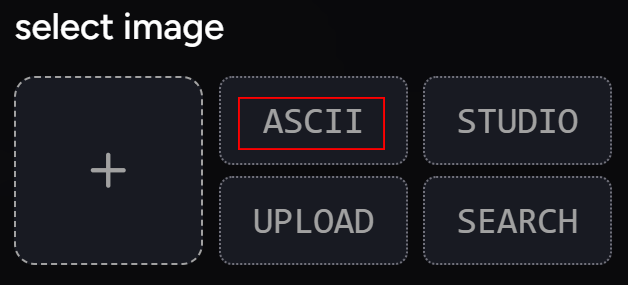
ASCII Generator Button.
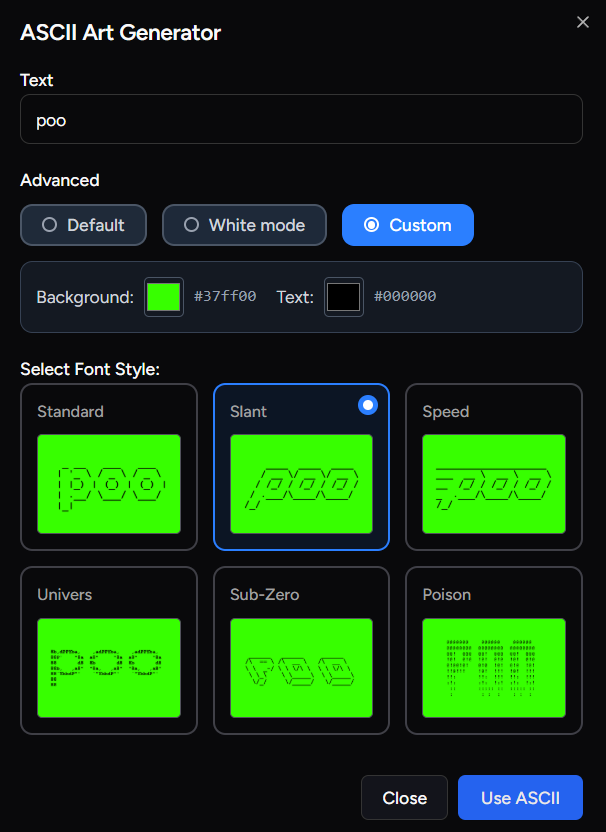
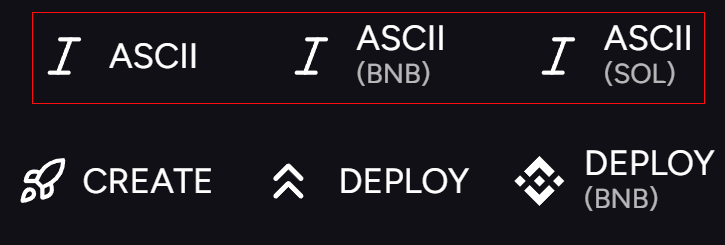
Quick Deploy with ASCII.
uDev Studio:
You may also create entirely custom artwork for your coins within the uDev Launch Panel using uDev Studio. Simply click the Studio button next to the Image Library in your Launcher.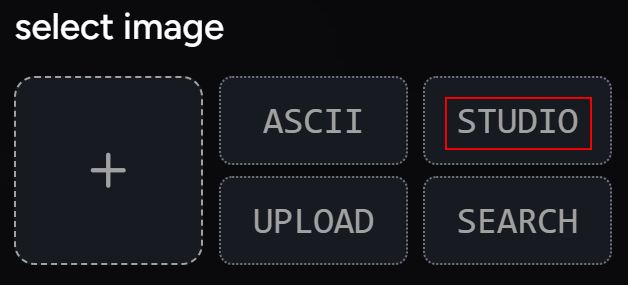
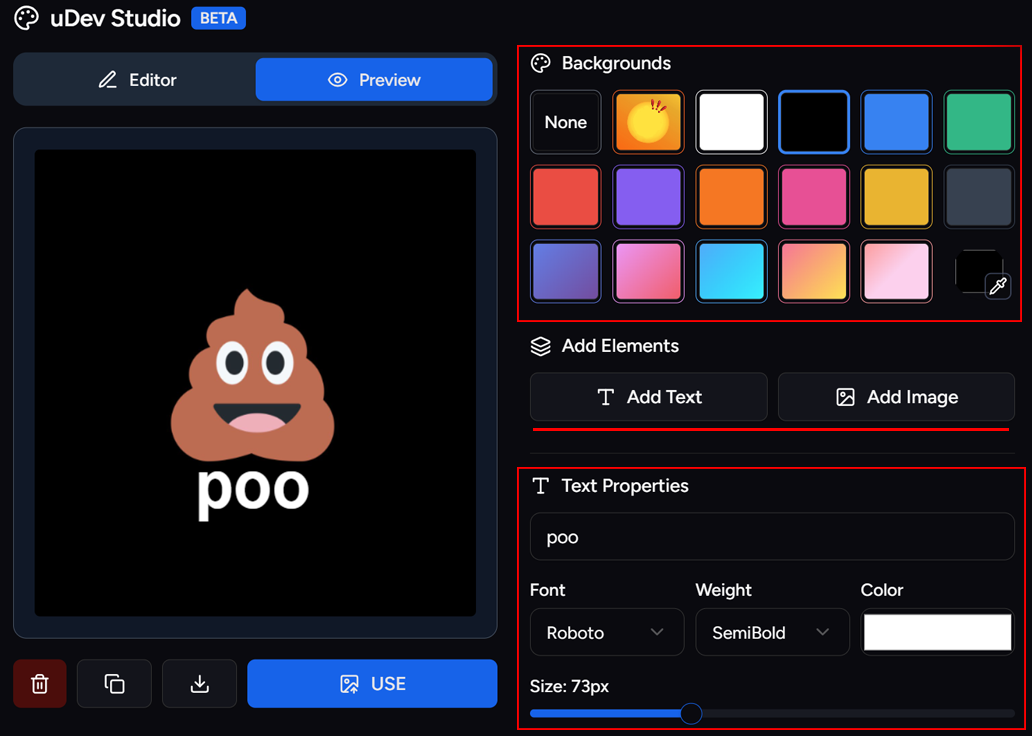
Create Custom Artworks within uDev Studio
Custom Vanity CA:
Within the uDev Creator Module, you also have the ability to launch tokens with a Custom ‘Bonk’ or ‘Pump’ Vanity CA; whether you’re launching on Pump/Bonk or any other launchpad. Simply click the Pump/Bonk icons at the bottom-right of the creator module, located next to the Deploy button.
Launch Your Coin with a Custom 'Bonk' or 'Pump' CA No Matter where you Launch
Vamp Coin:
uDev also allows you to easily ‘Vamp’ coins and create tokens based on another coin’s contract address, instantly. This allows you to easily PvP other emerging coins in real time.
Vamp Coin Button
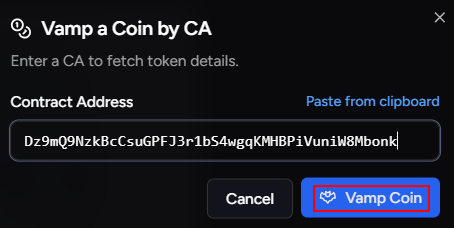
Import Any Contract Address to Vamp a Coin
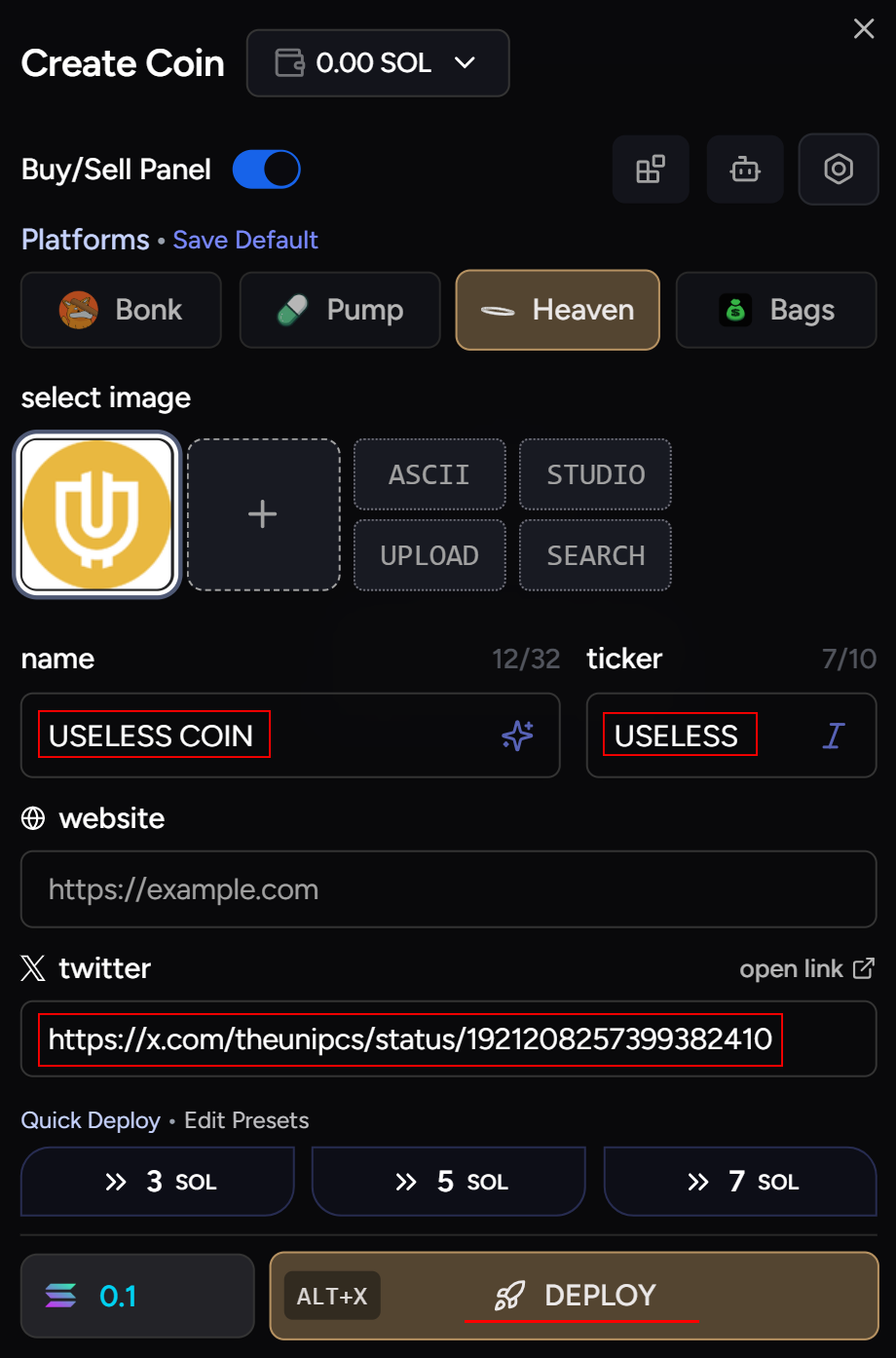
uDev Retrieves All Necessary Data
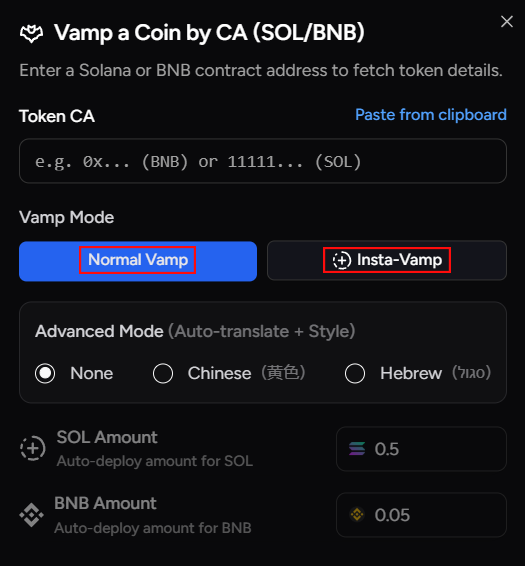
Vamp Mode

Auto-Translate Vamp Launches in Chinese/Hebrew
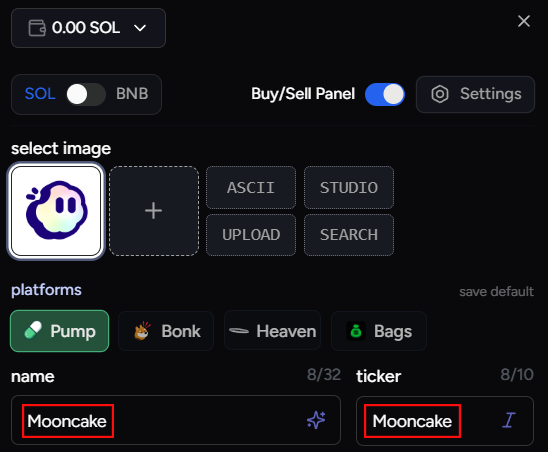
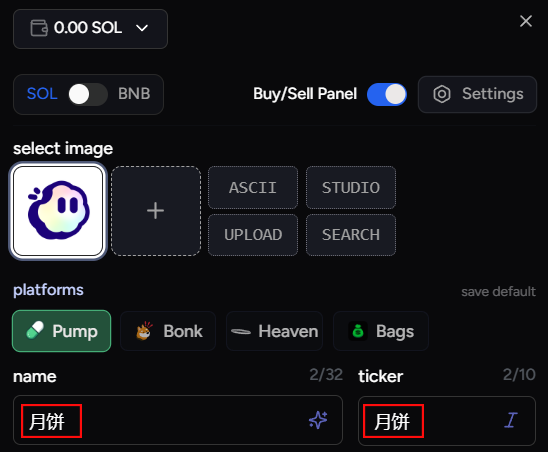
Auto-Translate Vamps on Launch
Quick Deploy:
The quickest and most efficient means of launching if you want to capitalize on trending memes/news is uDev’s Quick Deploy feature. Quick Deploying can be done by highlighting any text from a tweet on your Uxento Vision and clicking ‘Deploy’. This will instantly launch a coin based on the highlighted text. Quick Deploy can also be used to launch tokens to the BNB chain via FourMeme. Simply highlight any text and click ‘Deploy (BNB)’ instead of Deploy.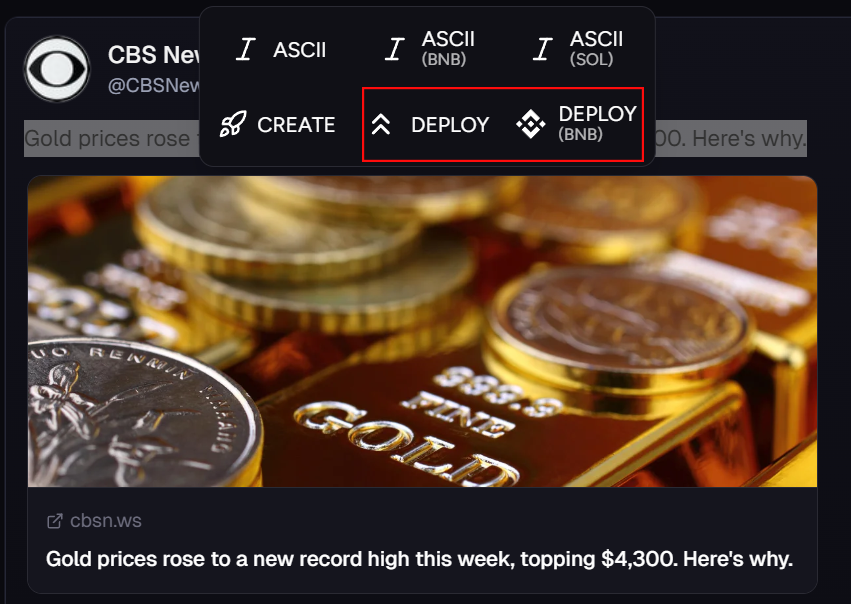
Highlighting any Tweet Text in Uxento Vision will allow you to Quick Deploy.
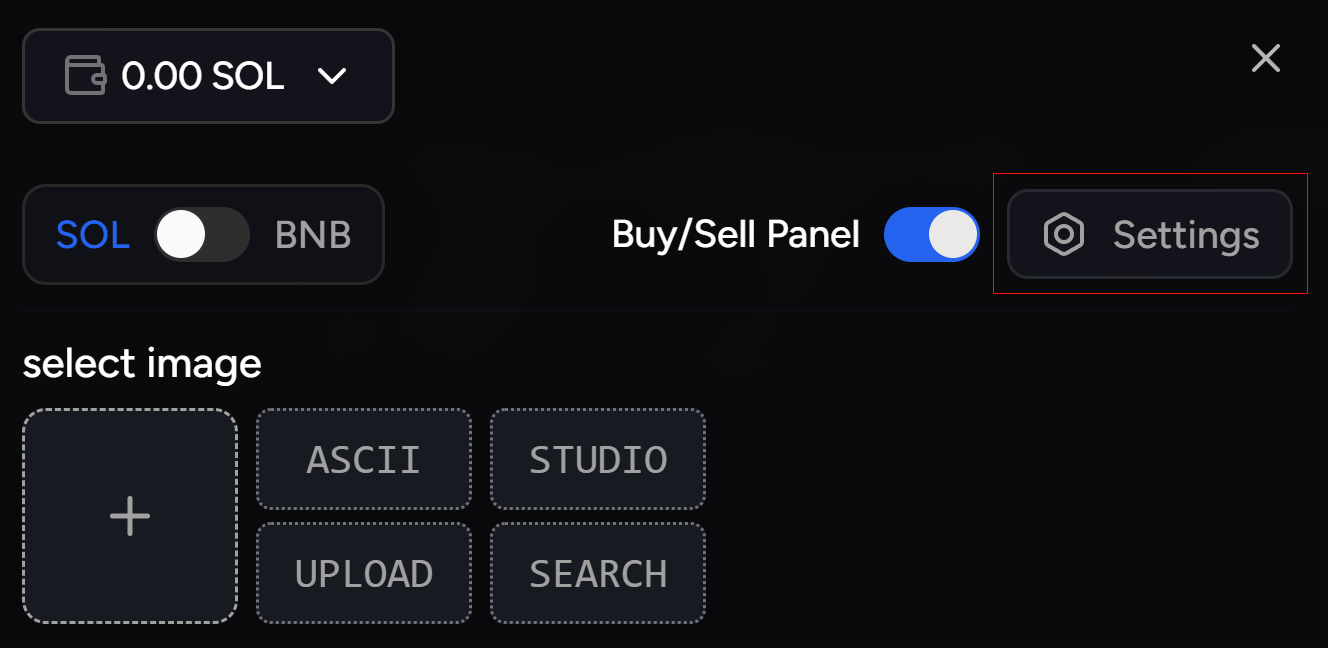
Advanced Settings Button

Quick Deploy Preset
Launch Coins with BagsApp:
uDev is also currently the only development platform that supports deployment via BagsApp; you do not need to do anything to connect uDev with BagsApp and will already be able to see it as an option when launching with uDev. You may also customize your developer fees when launching via BagsApp, to do this simply click Customize Bags Fees, input the Twitter Username you wish to share royalties with, and move the slider to your desired Fee Split.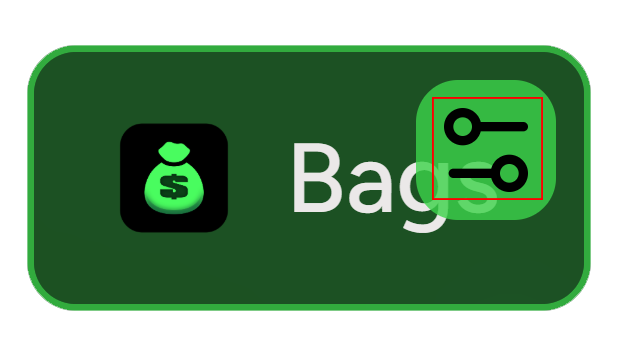
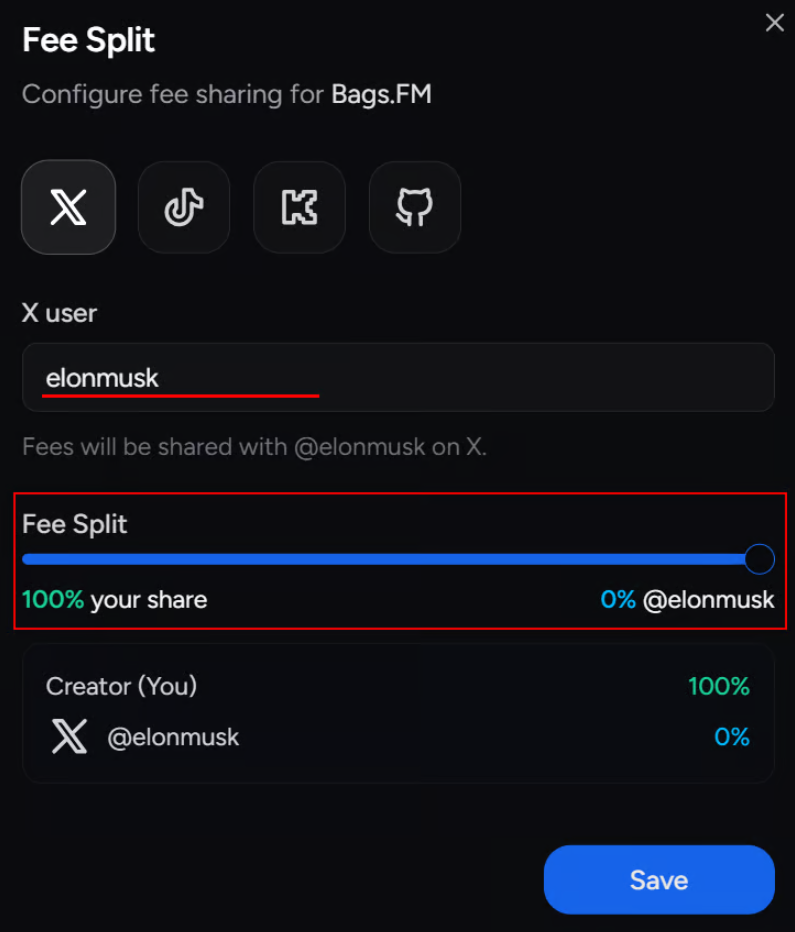
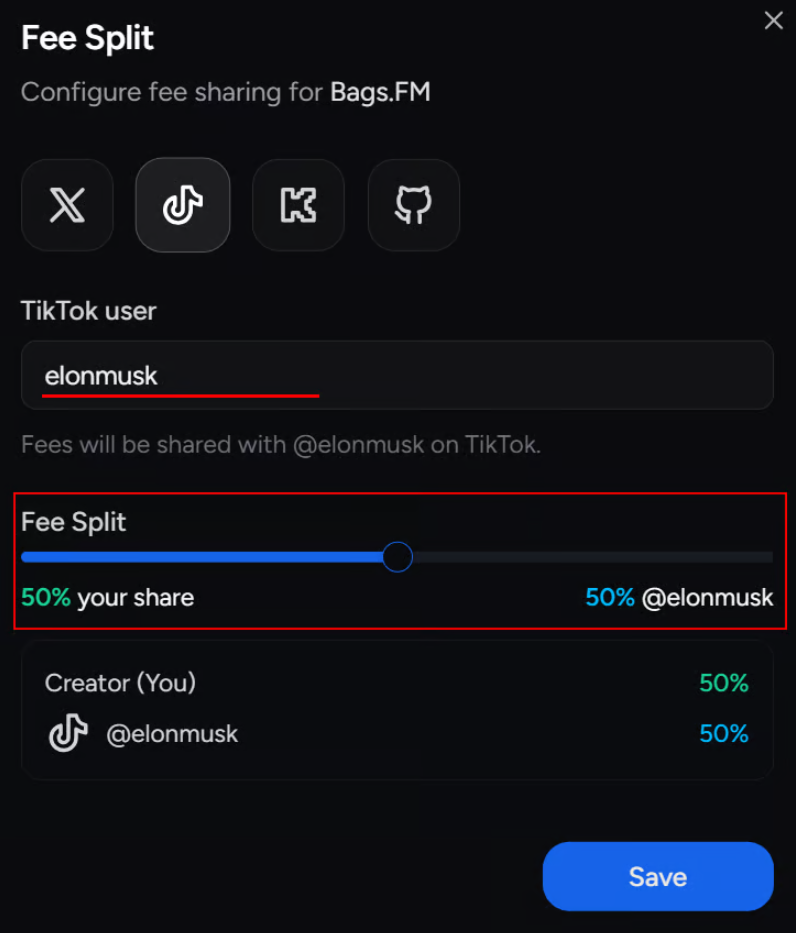
BagsApp Fee Split Configuration

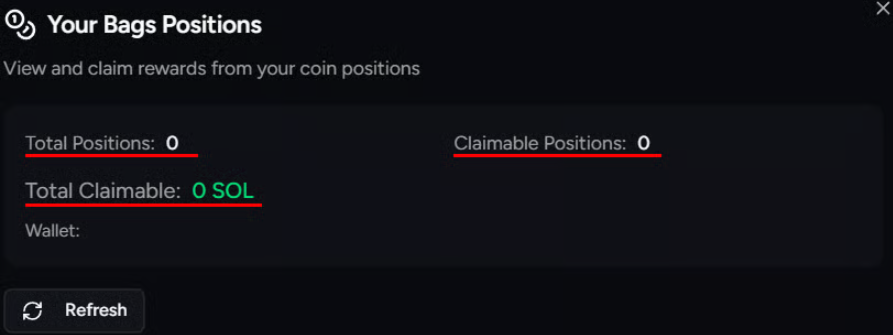
BagsApp Fee Split Configuration
Launch Coins with FourMeme:
uDev also supports the deployment of tokens to the BNB chain via FourMeme. To do this, simply click the SOL/BNB toggle in the top left of the uDev Creator Module to configure BNB launches. Simply fill in the fields and launch your coin on BNB as you would on any SOL launchpad via uDev. Launches via FourMeme can be supported by BNB, Aster or USD1 and allow uDev features such as multi/cross-deploy and auto-sell.
Launch on FourMeme with uDev
Custom AI Prompts:
To make using uDev even easier, you can set-up AI Prompts to assist in the creation of your coin’s ticker/coin names. These prompts work via the Star icon in the uDev Launch panel. To do this, click on the Settings button and navigate to the Dev Mode settings. Under the Custom AI Prompts pane, click the Add Prompt button and enter what prompts you would like to pair token generations with. You can manage prompts at any time via this page.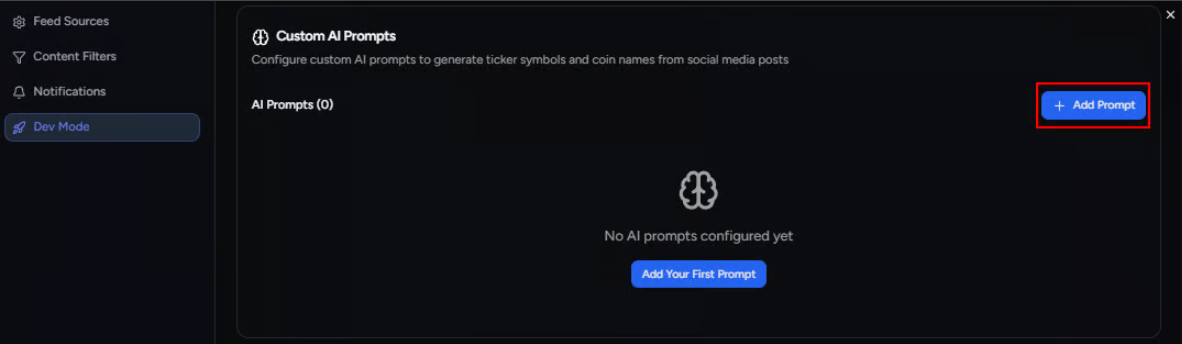
Add Your Own Custom AI Prompts
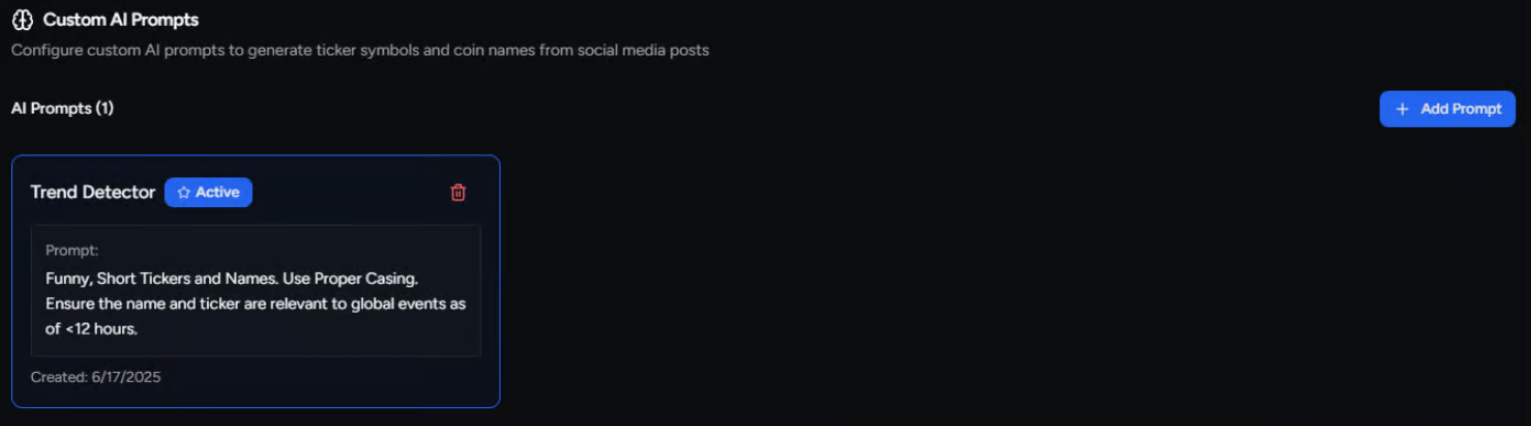
You Can Manage Your Prompts via the Dev Mode Settings Tab
Launch Coins via Your Trading Platform:
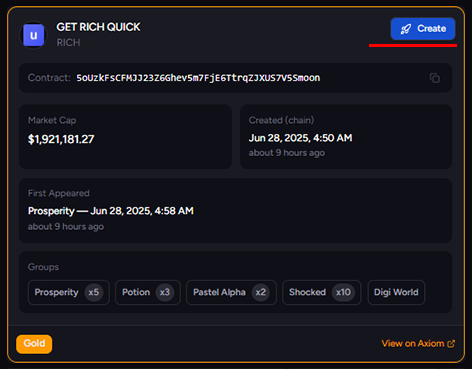
While using uxtension on your trading platform, you will also be able to employ uDev’s launcher to easily launch coins without leaving your trading platforms. When using Axiom, Nova, GMGN or Photon you will find a new option to either ‘Create Coin’ or ‘Vamp Coin’.
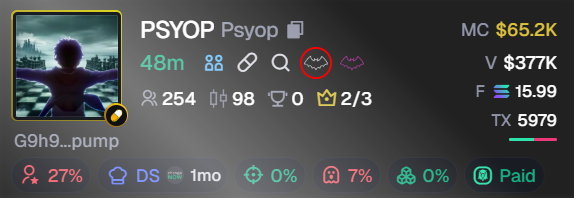
Pulse Vamp Button
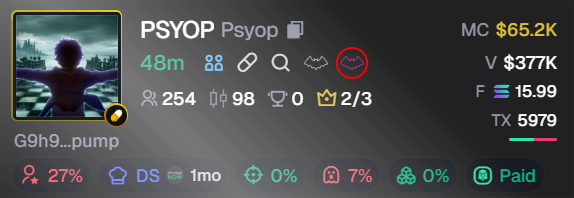
Pulse Insta Vamp Button
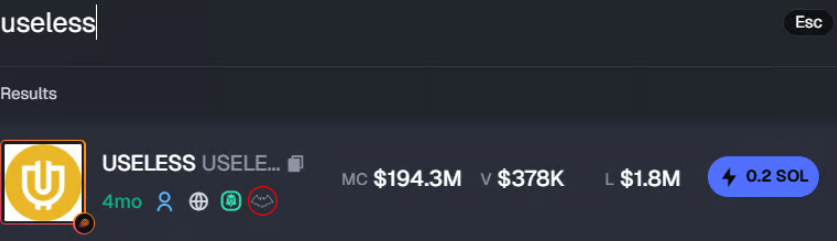
Vamp via Search
Launch Coins via X:
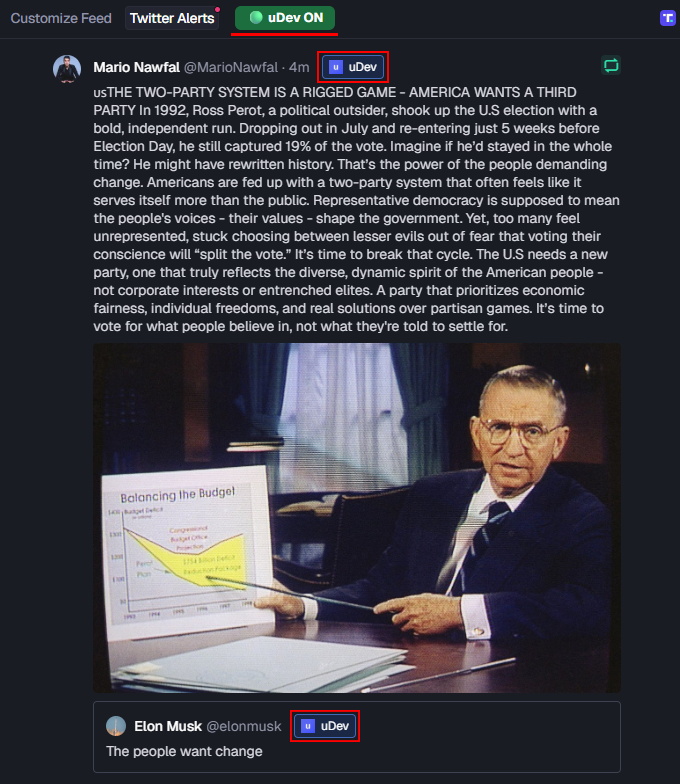
You can also launch coins directly while browsing X using uDev. Just click the ‘u’ button in the bottom left of any X post to open the uDev Launcher. From there, follow the prompts to seamlessly launch your coin through X.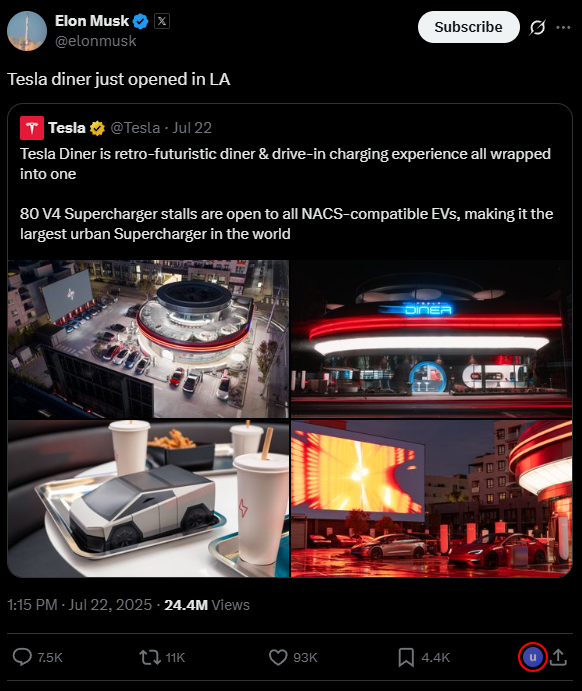
uDev on X
Launch Coins via Discord:
You can also use uDev seamlessly within Discord, to learn more, click here.Launch Coins Anywhere on the Web with uxtension:
You can also use uDev with its uxento companion, uxtension to launch/vamp coins from any page on the web. To learn more, click here.Buy/Sell with uDev:
You may also use uDev to conduct your dev buy/sell trades with only a 0.75% fee (most platforms utilize a 1% fee) when creating your token. To do so ensure the Buy/Sell Panel toggle is enabled in your uDev Launch Panel.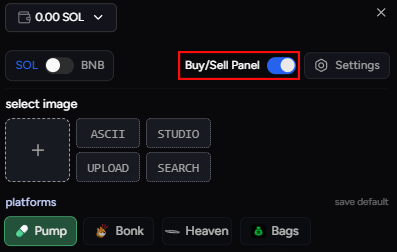
Buy/Sell can be Toggled Off/On
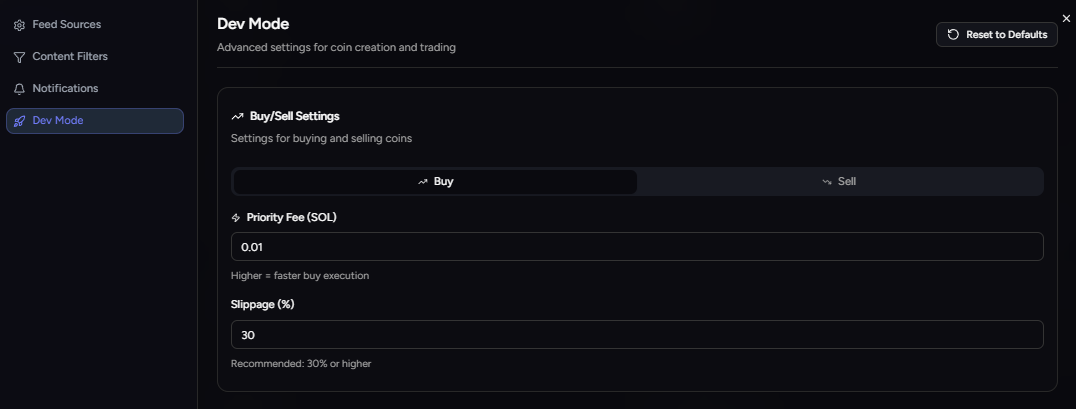
Dev Mode Buy/Sell Settings
Monitor uDev Assets:
You can easily view and manage tokens held within your uDev Wallets via the uDev Sell Panel which can be accessed via Uxento Vision.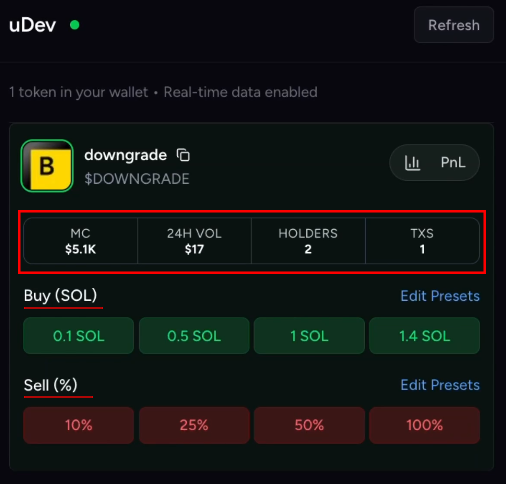
uDev Sell Panel
Generate uDev PnL:
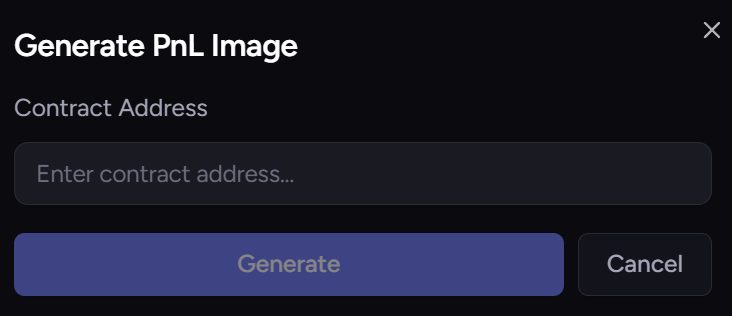
Within the Sell Panel you may also generate custom uDev PnL cards for tokens you’ve held or created. To do this, simply click the PnL button next to any currently held or previously traded position in your wallet.
uDev PNL

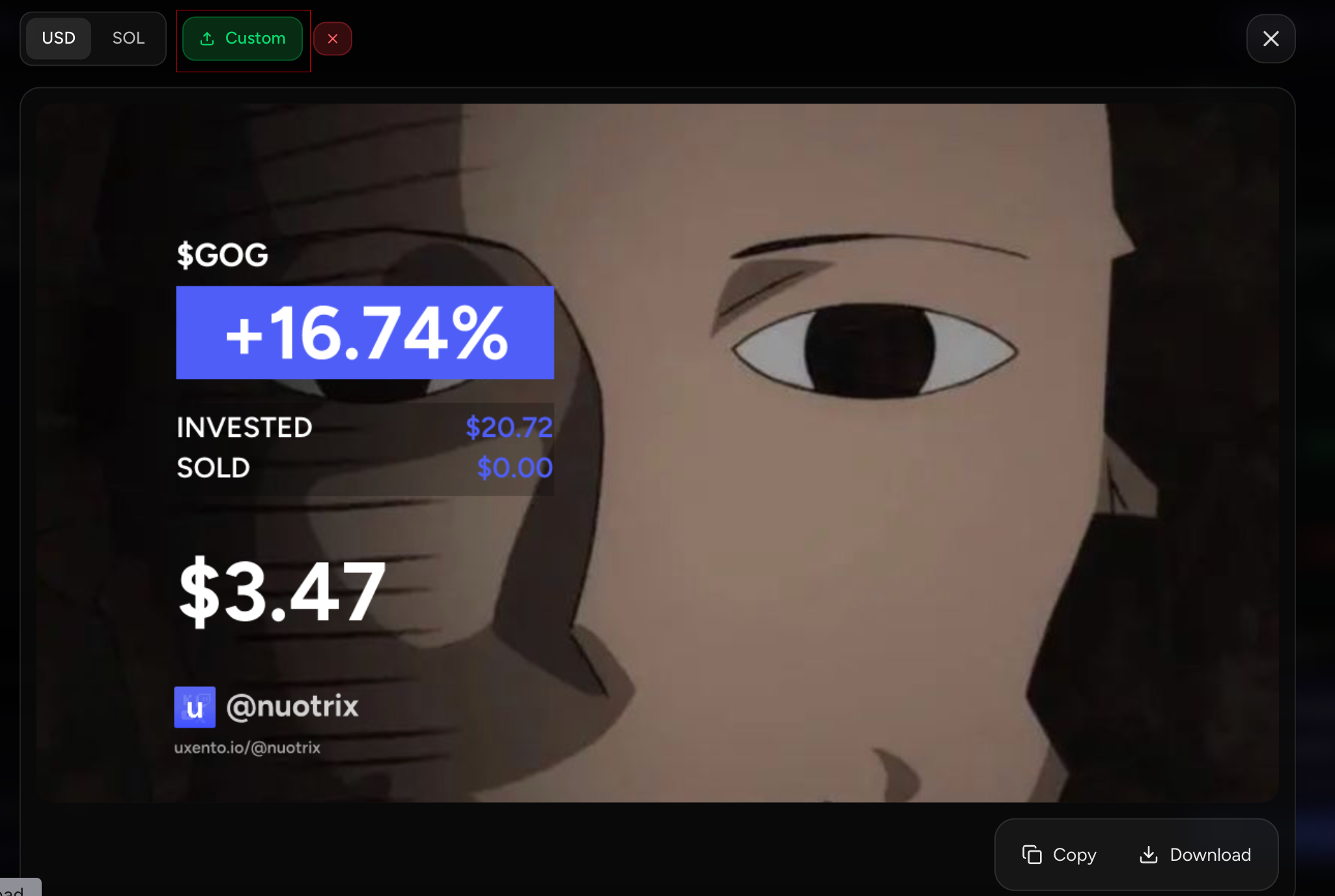
uPNL with Custom Background
Custom uDev Priority Fees:
You may also customize your ‘Create Coin’ priority fee for faster execution. This can be done via the Dev Mode settings panel in Uxento Vision under the ‘Create Coin Settings’ pane, or the Advanced Settings in your uDev Launch Panel. Simply change the fee higher or lower to suit your needs.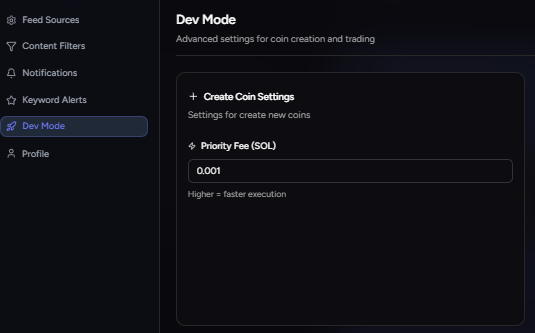
Create Coin Settings
Sniper/Bundler:
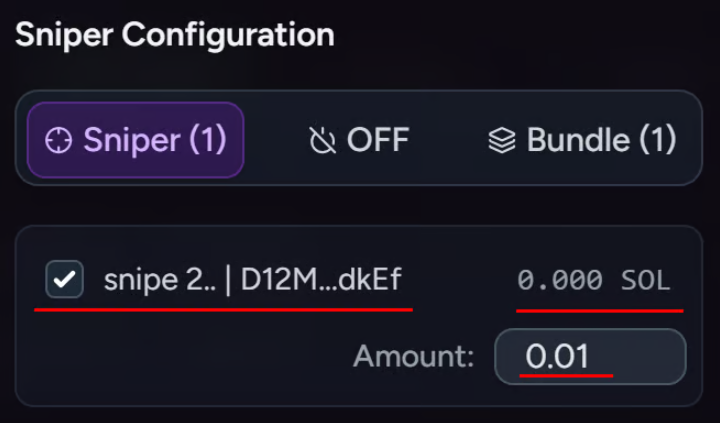
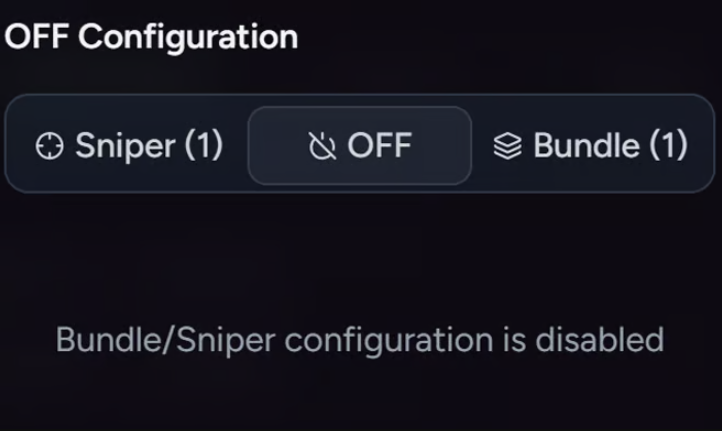
uxento also comes complete with a Sniper and Bundler for devs who use multiple wallets linked to uDev when launching coins. To configure this, simply click on the Snipe/Bundle Configuration Button to configure either tool.
Sniper/Bundle Configuration Button
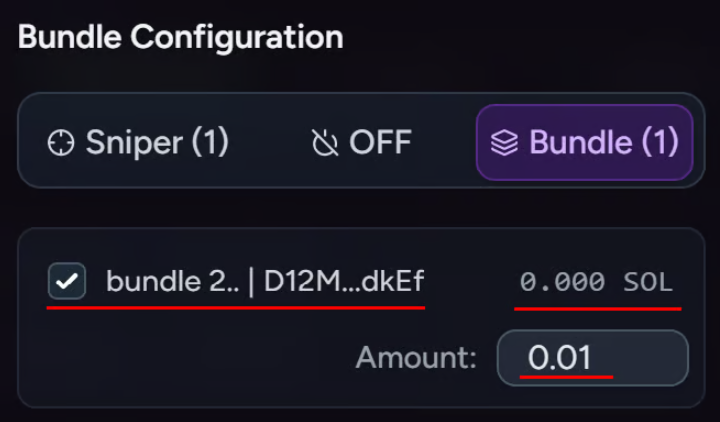
Active Bundle Configuration with 1 Bundle Wallet
Active Sniper Configuration with 1 Sniper Wallet
Multi-Deploy Tokens:
When launching coins, you may easily deploy multiple of the same token. To do this, simply click on the Blocks icon in the top right of your uDev Launch Panel.
Multi-Deploy Settings
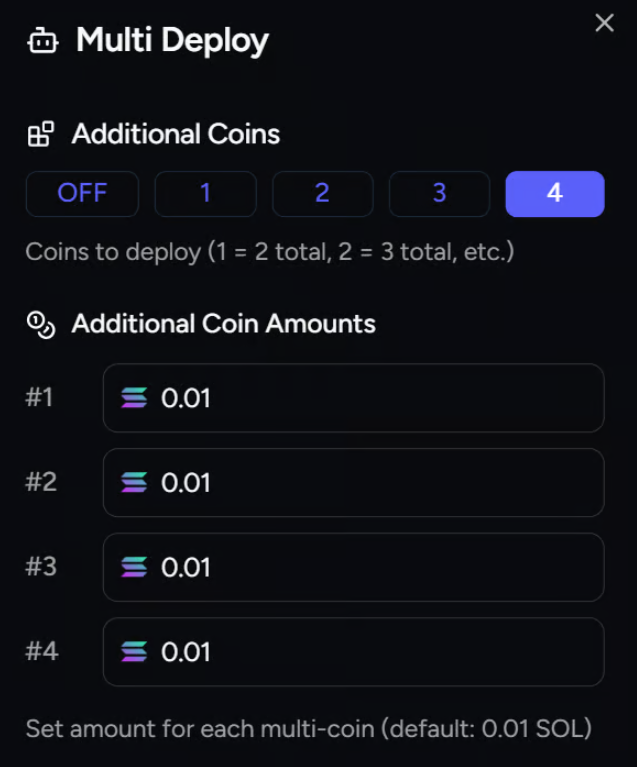
Multi-Deploy Configuration
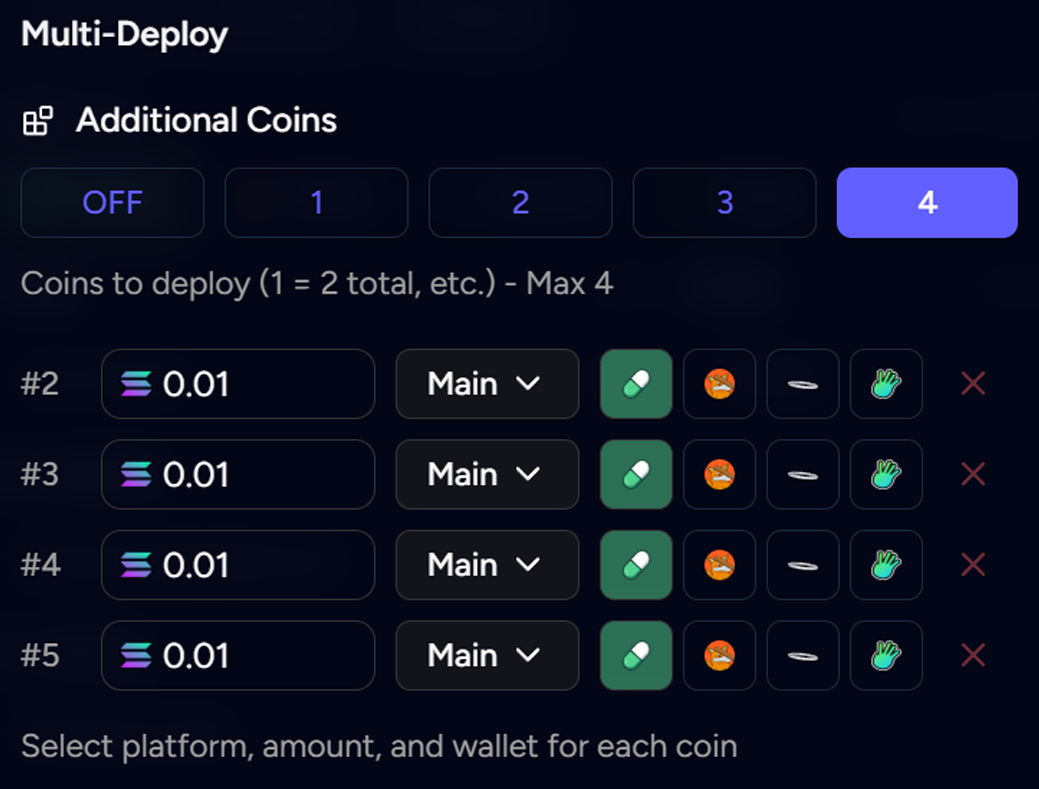
Multi-Deploy Active with 4 Additional Coins
Cross-Deploy:
Additionally, you may also launch multiple coins simultaneously across different launchpads. When refining your Multi-Deploy settings, you will also see an option to launch via another platform - simply select which platforms you wish to launch with.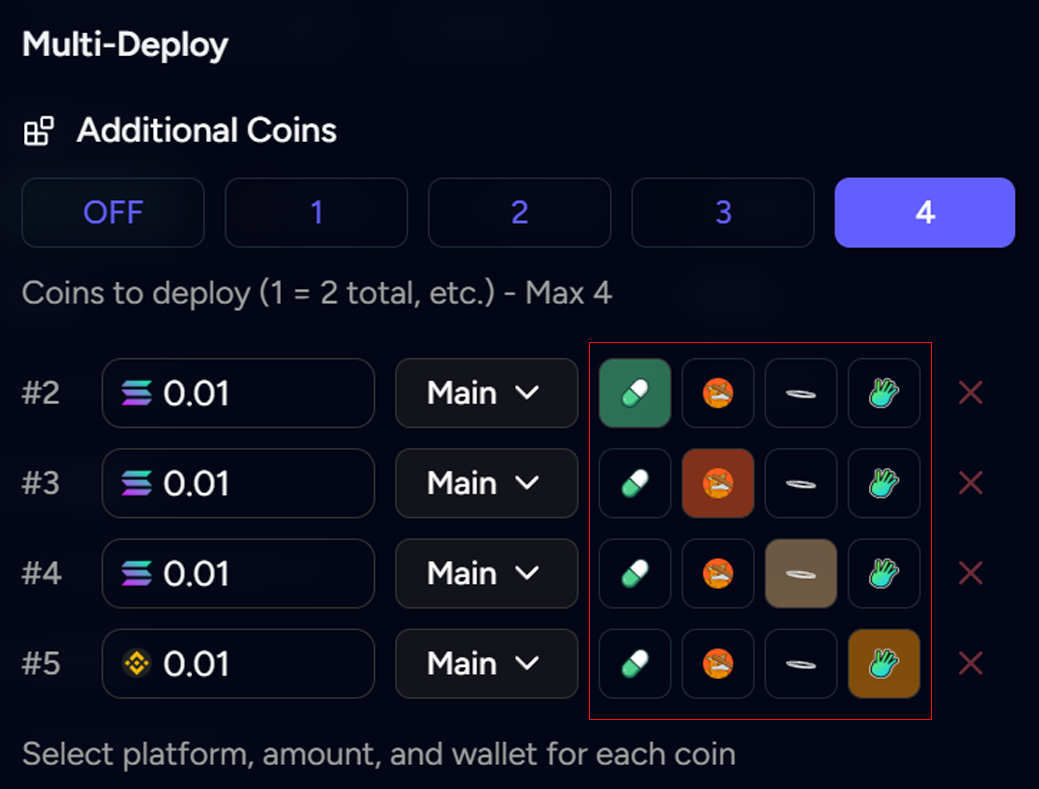
Cross-Deploy up to 4 additionalcoins across multiple launchpads
Multi-Dev:
In addition to the above, Multi-Dev allows you to launch duplicate tokens from multiple wallets. To do this, when refining your multi-deploy settings, click the drop-down next to the platform selector and choose the wallet you want to use to launch each token.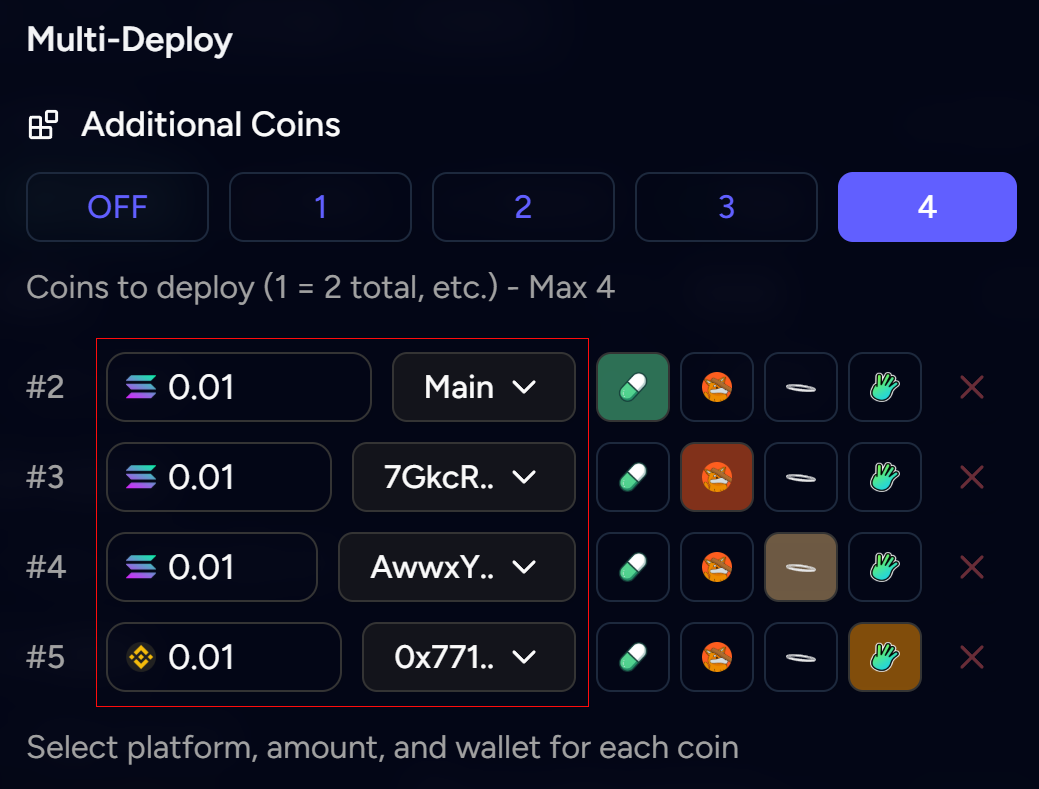
Launch multiple tokens across different wallets.
Auto-Sell:
uDev also has a built-in feature toAuto-Sell when deploying coins. To do this, simply click the Robot icon in the top right of your uDev Launch Panel.
Auto-Sell Settings
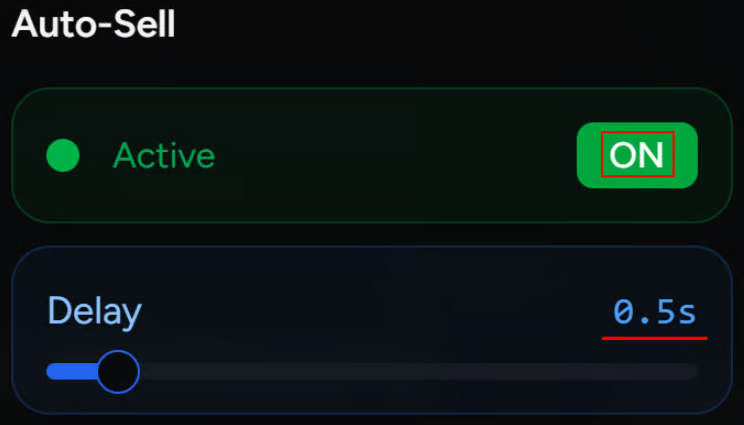
Active Sniper Configuration with 0.5ms Delay
Active Sniper Configuration with 0.5ms Delay
Launch Coins with USD1:
When using uDev to launch coins via Bonk - you may also use USD1 instead of Solana to deploy your token. To do this, simply click the currency toggle from SOL to USD1.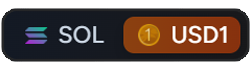
Advanced Settings:
Within the uDev Creator Module, you can access a range of advanced settings to further fine tune your launch experience via uDev.Advanced Settings Access
Toggle to ‘Advanced’ to limit automated detection of tokens created with uDev and reduce attribution to uDev. Normal: Can still manually be detected as a launch with uDev, but rarely.
Advanced: Impossible to detect; completely shadows your launch having any association with uDev. Deploy Priority Fee:
Quickly change your priority fee when deploying coins. Higher = faster execution. Quick Deploy Preset:
Quickly change your preset amount of SOL when quick deploying tokens from highlighted text. Insta-Vamp Amount:
Configure your preset for Auto-Deploys when Vamping Coins Keyboard Shortcuts:
Easily create and customize quick keyboard shortcuts for a range of quick actions i.e. Deploy Coin or Quick Deploy 3 SOL. Vamp Mode Preset:
Set your Vamp Mode Style Preset between Normal/Chinese/Hebrew for more efficient launches using Vamp Mode.
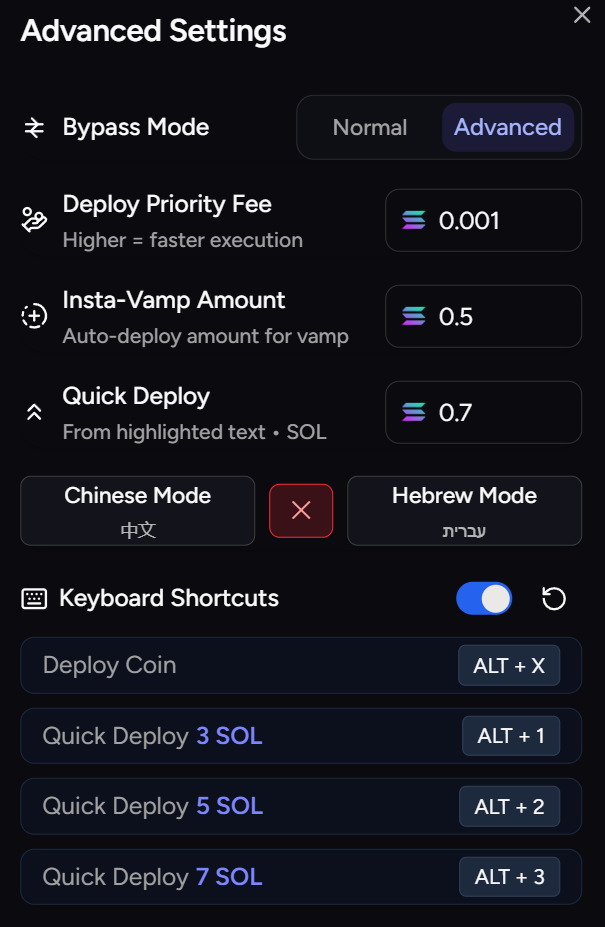
Advanced Settings Panel
Manage Developer Wallets in uDev:
While you only need to use uDev with the wallet provided to you, you also have the option to create, import and manage multiple wallets across chains. To do this, simply navigate to the Settings button and go to the Dev Mode panel. Once in the Dev Mode settings you will find the wallet management tab at the top.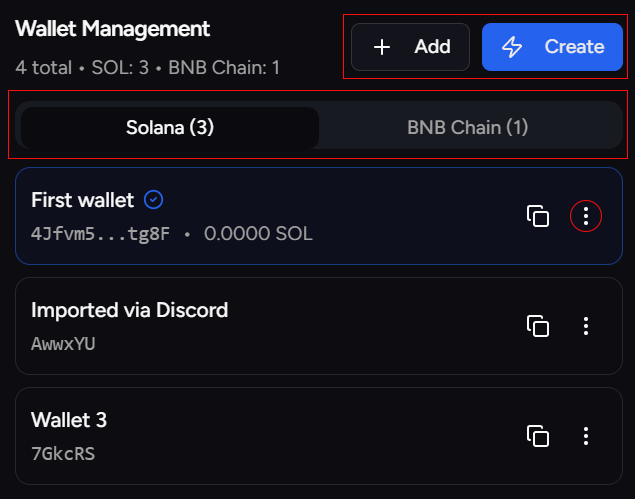
Dev Mode Wallet Management Tab

Wallet Overview Easily Accessible at the Bottom of your Home Page
Manage uDev Wallets Via Discord:
You may also manage your wallets via Discord, if you are a member of the Uxento Discord Server. Within Uxento’s Discord Server, there is a dedicated ‘uDev’ channel which you can use to interface with your wallet manager and send uDev related slash commands.
uDev Discord Channel

uDev Slash Commands
/dev account
The /dev account command allows you to see a display of your Dev account including the balance and public key of your primary wallet and how many wallets you have in your Dev account.
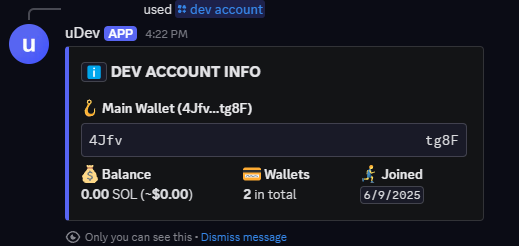
uDev Dev Account Panel
/dev import
The /dev import command allows you to import any Solana wallet you wish to use with uDev, simply enter the private key of the wallet you wish to import.

Import the Private key of the wallet you wish to Import.
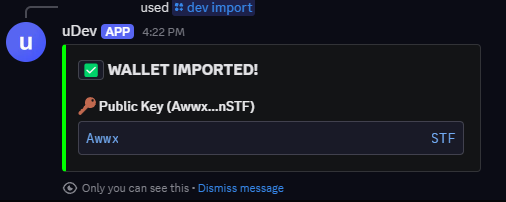
Wallet Imported
/dev wallets
The /dev wallets command allows you to manage all of your uDev wallets via an interface where you can delete wallets, and set a new primary wallet by using the embedded buttons.
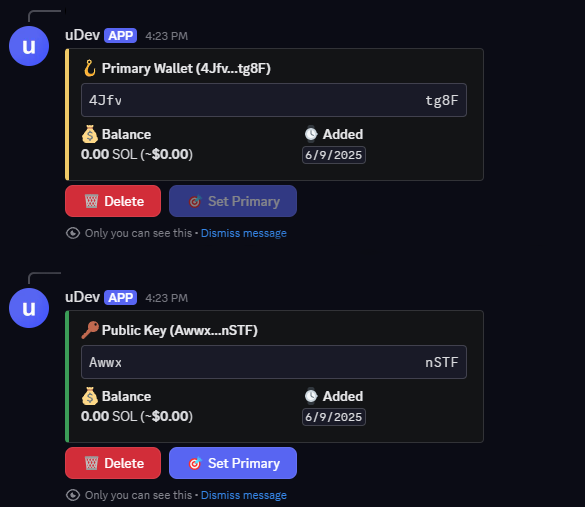
uDev Wallet Manager Panel