> ## Documentation Index
> Fetch the complete documentation index at: https://draft-1bdd2994.mintlify.site/llms.txt
> Use this file to discover all available pages before exploring further.
# uxtension
> This part of the documentation will help you install the uxtension extension.
 **The uxento uxtension is completely free to download and use.**
*To use the extension without bugs/interruption, deleting extensions such as "Phocaine" is required.*
***We offer everything they do, and more.***
### Currently Supporting:
For the ultimate uxtension experience we recommend using [Axiom](https://axiom.trade/discover) however we also support GMGN, Padre and more!
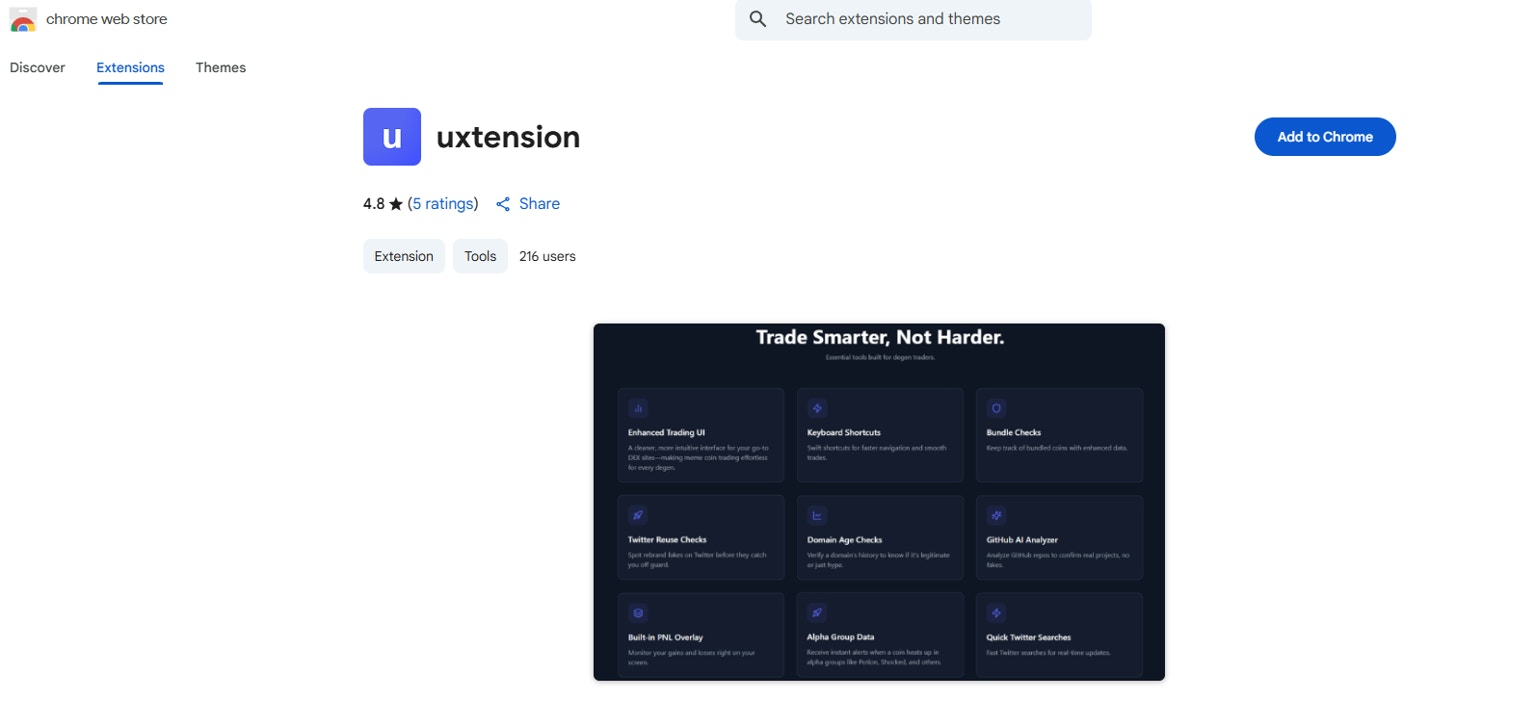
Download uxtension [here via the Chrome Web Store](https://chromewebstore.google.com/detail/uxtension/pljeffieceahpjcgldlglfidenecjloh?pli=1)
**The uxento uxtension is completely free to download and use.**
*To use the extension without bugs/interruption, deleting extensions such as "Phocaine" is required.*
***We offer everything they do, and more.***
### Currently Supporting:
For the ultimate uxtension experience we recommend using [Axiom](https://axiom.trade/discover) however we also support GMGN, Padre and more!
Download uxtension [here via the Chrome Web Store](https://chromewebstore.google.com/detail/uxtension/pljeffieceahpjcgldlglfidenecjloh?pli=1)
 ## How to Update uxtension:
To easily update uxtension, you can enable developer mode and hit the update button.
Alternatively, you may also just "remove" the extension, and then re-download it from the Chrome Web Store to ensure you are on the latest version.
## Features:
uxento consistently adds more features to the uxtension extension, ensure to keep updated by following our socials!
[Discord Server](https://discord.com/invite/uxento)
## How to Update uxtension:
To easily update uxtension, you can enable developer mode and hit the update button.
Alternatively, you may also just "remove" the extension, and then re-download it from the Chrome Web Store to ensure you are on the latest version.
## Features:
uxento consistently adds more features to the uxtension extension, ensure to keep updated by following our socials!
[Discord Server](https://discord.com/invite/uxento)
[Telegram Channel](https://t.me/uxento)
[X/Twitter](https://x.com/uxento)
**Below is a breakdown of all of the uxtension extension's current features:**
**Uxento Vision is an All in One alpha hub for users which includes:**
* CA Tracker
* CT Tracker
* DEX Tracker
* Streamflow Lock Tracker
* Truth Social Tracker
* News Feed
* Instagram Tracker
* Telegram Tracker (& more!)
all delivering the fastest, lowest delay results possible! [Click here to learn more.](/uxento-vision)
The CA Tracker in uxtension drastically enhances your ability to rapidly access real-time alpha.
Once installing the extension, you'll see these (highlighted in red) additions to your pulse page.
 **But the main addition you'll see with the coins on your Pulse page is "Groups":**
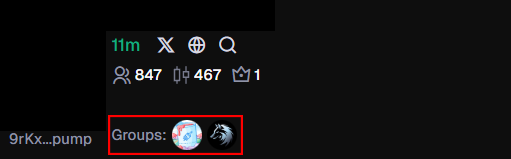 This shows which groups have had the CA of the coin posted in them within their **paid-subscription-gated alpha chats.**
It can be used to efficiently detect which coins are runners (especially when meta-based duplicates are being launched), and can help detect real volume against fake volume.
**We only track subscription-gated chats, meaning only paid members of these groups can post contract addresses which show on our tracker.**
We monitor Telegram channels/groups as well, but they have no image icons, and have to be identified by hovering over their simple text icons (alpha is posted way less often in Telegram, as we only monitor channels where the owners/admins themselves can post).
**Discord servers we currently have implemented:**
* [Potion Alpha](https://x.com/potionalpha)
* [Yogurtverse](https://x.com/YogurtVerse)
* [Pastel Alpha](https://x.com/PastelAlpha)
* [Shocked](https://x.com/Shocked)
* [TAGxAlpha](https://x.com/TAGxAlpha)
* [Digi World](https://x.com/digiworldd)
* [Prosperity](https://x.com/ProsperityDAO_)
* [Minted](https://x.com/MintedNFTs)
* [IgnitedDAO](https://x.com/IgnitedDAO/)
**Telegram channels/groups we currently have implemented:**
* [thedegentrenches](https://t.me/thedegentrenches)
* [gorillacapitalcooks](https://t.me/gorillacapitalcooks)
* [marcellcooks](https://t.me/marcellcooks)
* [arcanegems](https://t.me/arcanegems)
* [jidnlosesmoney](https://t.me/jidnlosesmoney)
* [powsgemcalls](https://t.me/powsgemcalls)
* [cookerscooks](https://t.me/cookerscooks)
* [narrativenach](https://t.me/narrativenach)
* [diorscabal](https://t.me/diorscabal)
* [profitsplays](https://t.me/profitsplays)
* [shockedjstrading](https://t.me/shockedjstrading)
* [gakesbakes](https://t.me/gakesbakes)
*If you are a representative of any of these channels or groups, or you are a representative of another group wanting to be tracked, feel free to contact us [here](https://x.com/uxento) or [here](https://discord.com/invite/uxento).*
#### Refresh:
The refresh button is what allows you to refresh the coins on your page to see which groups the coins have been posted in (if any.)
#### Token Search:
You may also search for tokens across all three categories with this one search bar located next to your uxtension refresh button.
This shows which groups have had the CA of the coin posted in them within their **paid-subscription-gated alpha chats.**
It can be used to efficiently detect which coins are runners (especially when meta-based duplicates are being launched), and can help detect real volume against fake volume.
**We only track subscription-gated chats, meaning only paid members of these groups can post contract addresses which show on our tracker.**
We monitor Telegram channels/groups as well, but they have no image icons, and have to be identified by hovering over their simple text icons (alpha is posted way less often in Telegram, as we only monitor channels where the owners/admins themselves can post).
**Discord servers we currently have implemented:**
* [Potion Alpha](https://x.com/potionalpha)
* [Yogurtverse](https://x.com/YogurtVerse)
* [Pastel Alpha](https://x.com/PastelAlpha)
* [Shocked](https://x.com/Shocked)
* [TAGxAlpha](https://x.com/TAGxAlpha)
* [Digi World](https://x.com/digiworldd)
* [Prosperity](https://x.com/ProsperityDAO_)
* [Minted](https://x.com/MintedNFTs)
* [IgnitedDAO](https://x.com/IgnitedDAO/)
**Telegram channels/groups we currently have implemented:**
* [thedegentrenches](https://t.me/thedegentrenches)
* [gorillacapitalcooks](https://t.me/gorillacapitalcooks)
* [marcellcooks](https://t.me/marcellcooks)
* [arcanegems](https://t.me/arcanegems)
* [jidnlosesmoney](https://t.me/jidnlosesmoney)
* [powsgemcalls](https://t.me/powsgemcalls)
* [cookerscooks](https://t.me/cookerscooks)
* [narrativenach](https://t.me/narrativenach)
* [diorscabal](https://t.me/diorscabal)
* [profitsplays](https://t.me/profitsplays)
* [shockedjstrading](https://t.me/shockedjstrading)
* [gakesbakes](https://t.me/gakesbakes)
*If you are a representative of any of these channels or groups, or you are a representative of another group wanting to be tracked, feel free to contact us [here](https://x.com/uxento) or [here](https://discord.com/invite/uxento).*
#### Refresh:
The refresh button is what allows you to refresh the coins on your page to see which groups the coins have been posted in (if any.)
#### Token Search:
You may also search for tokens across all three categories with this one search bar located next to your uxtension refresh button.
 [The CA Tracker is also accessible via Uxento Vision, to learn more - click here.](/uxento-vision#ca-tracker%3A)
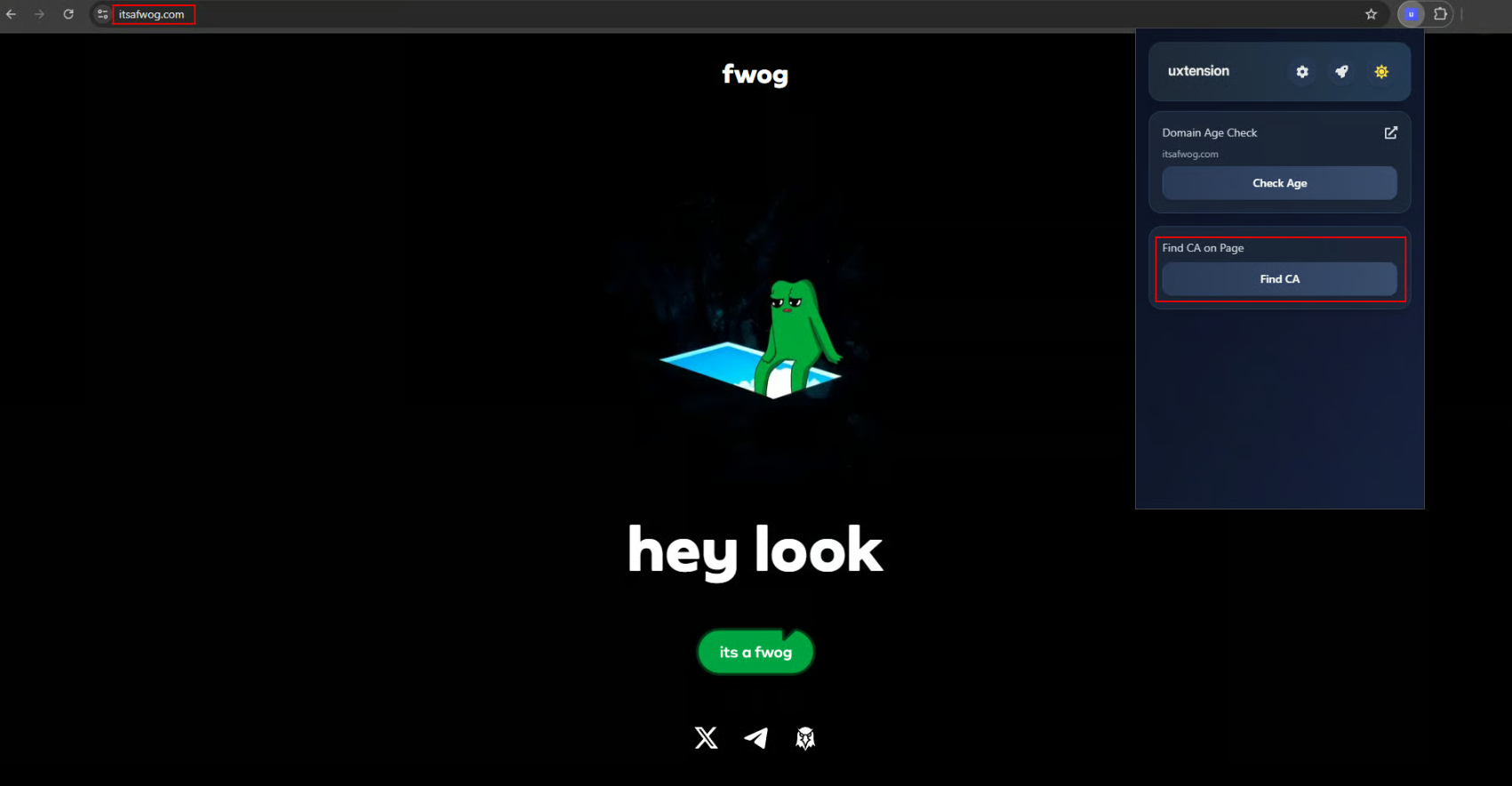
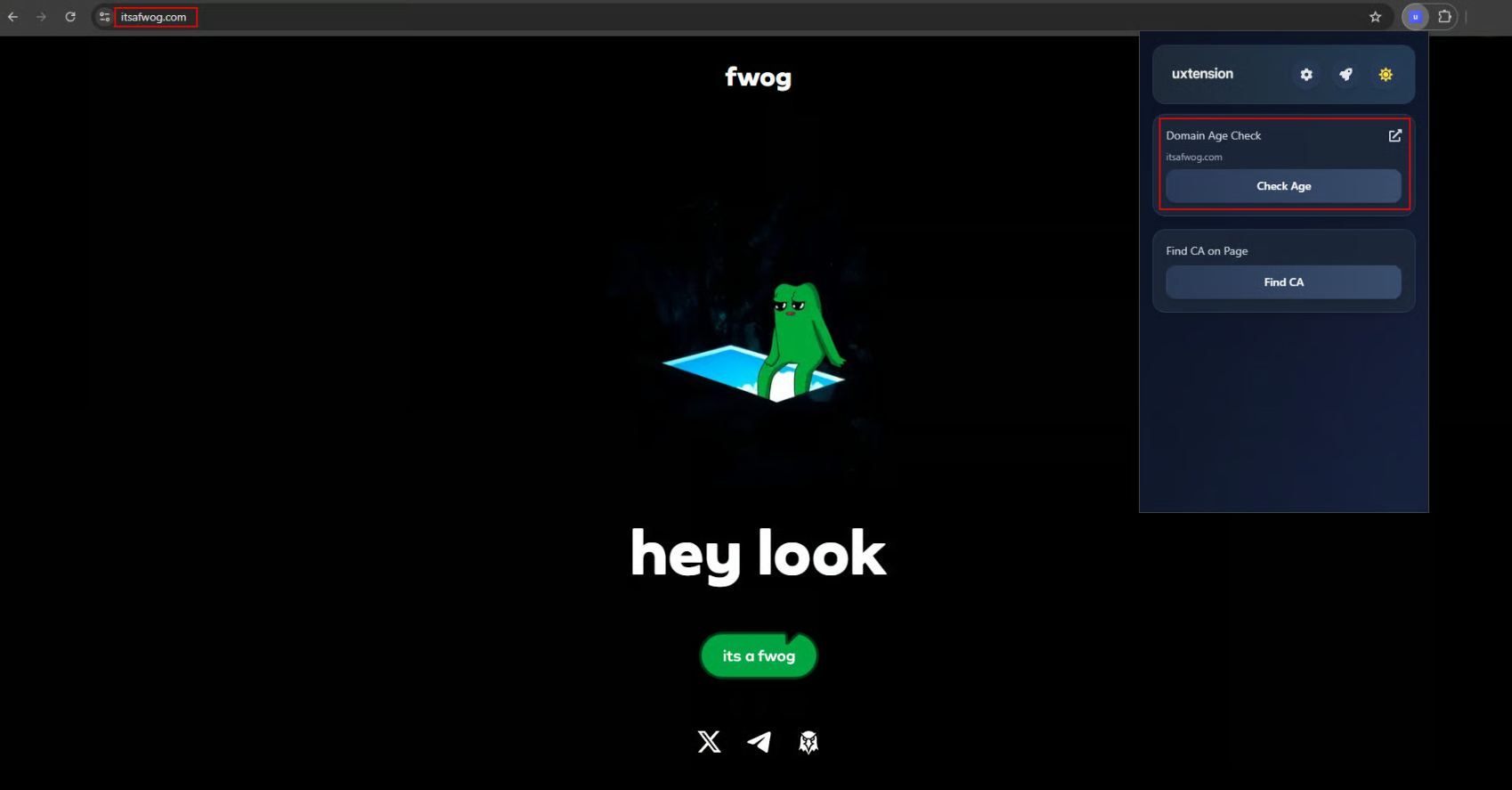
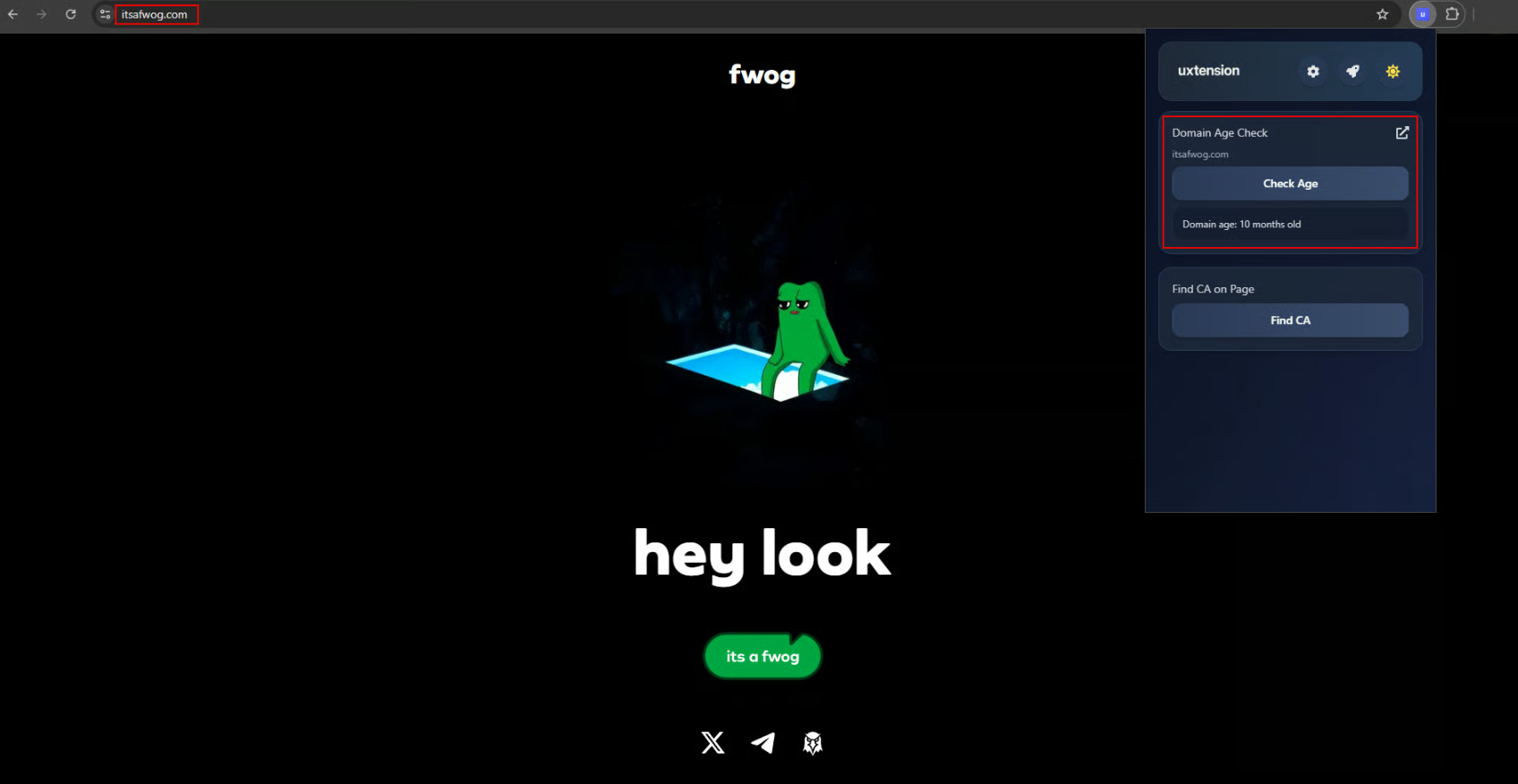
When hovering over any website and opening the uxtension extension, there is a built-in CA Finder and Domain Age Checker.
#### Find CA:
[The CA Tracker is also accessible via Uxento Vision, to learn more - click here.](/uxento-vision#ca-tracker%3A)
When hovering over any website and opening the uxtension extension, there is a built-in CA Finder and Domain Age Checker.
#### Find CA:
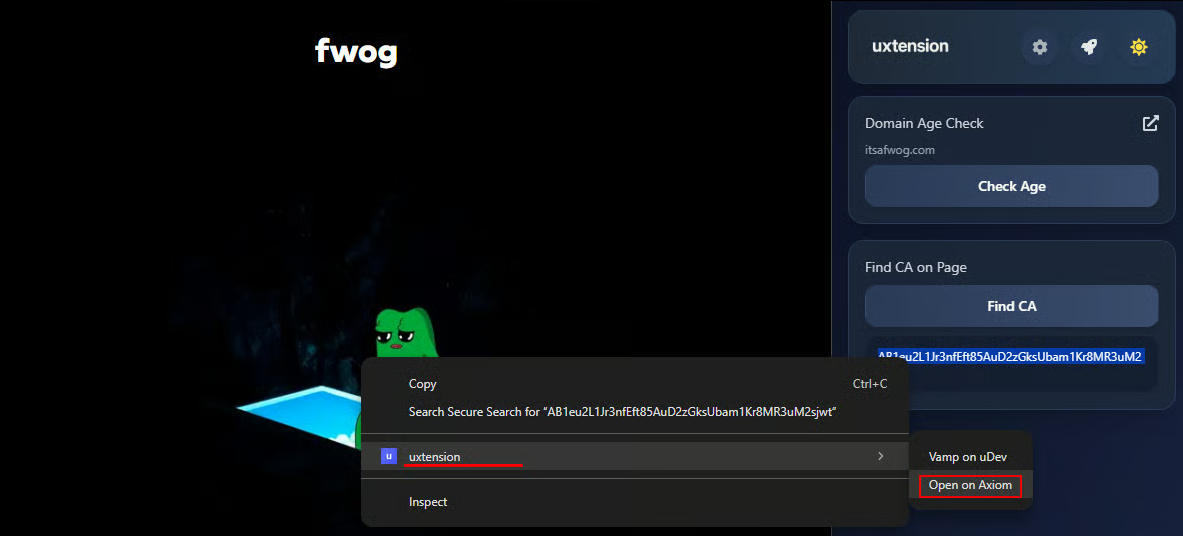
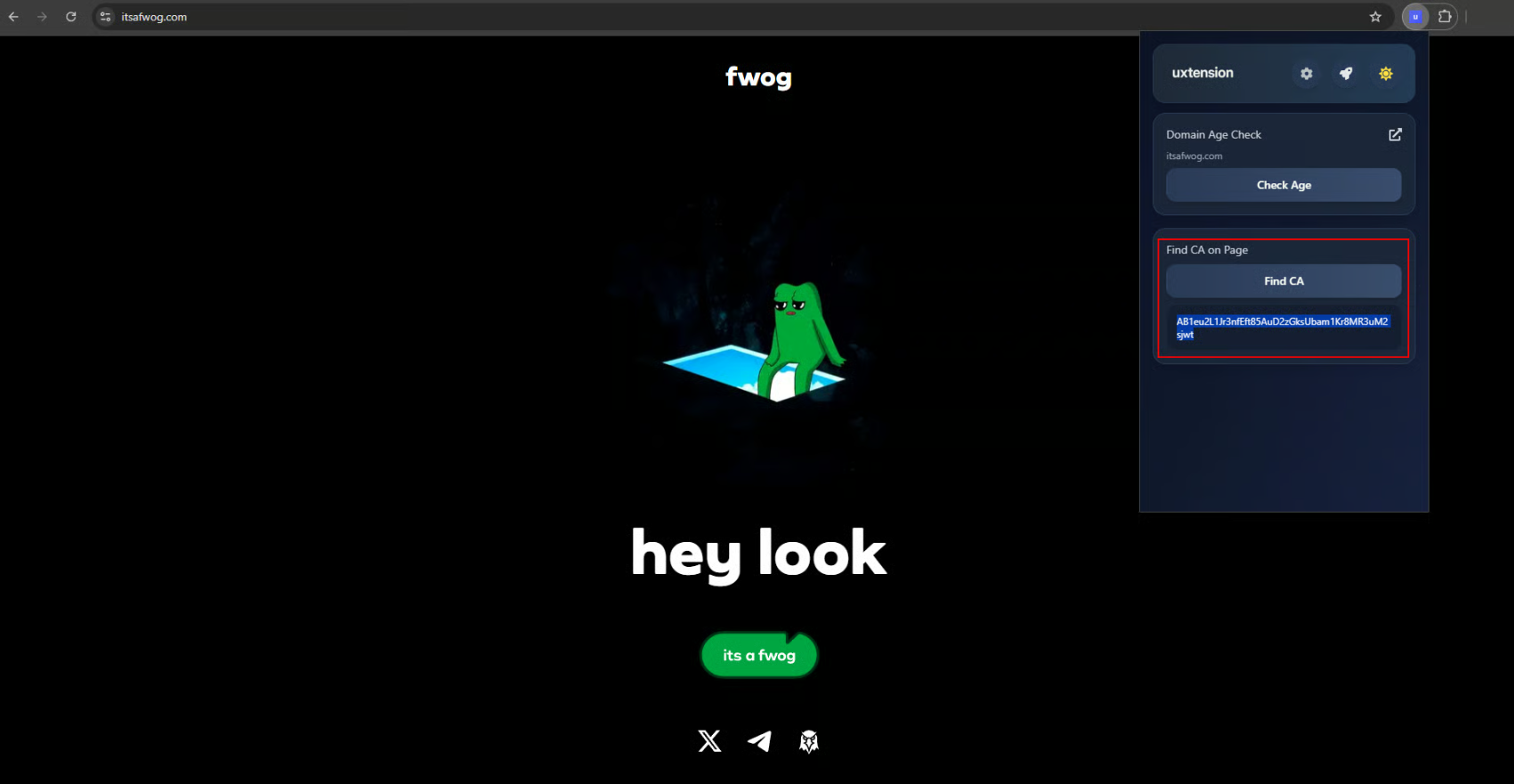 You can also highlight any CA to quickly open its Token Page on Axiom by clicking 'Open on Axiom'.
 #### Domain Age Check:
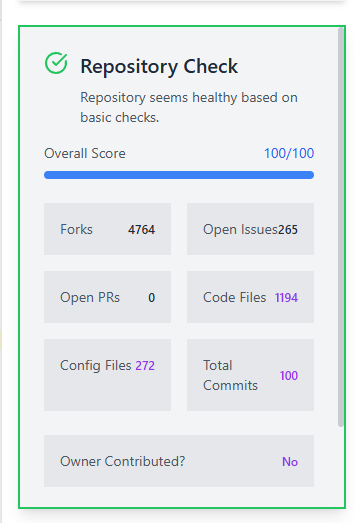
 You may also analyze GitHub repositories to assess project development activity and team credibility.
When hovering over a GitHub page and opening the uxtension extension, there is a built-in repository checker.
You may also analyze GitHub repositories to assess project development activity and team credibility.
When hovering over a GitHub page and opening the uxtension extension, there is a built-in repository checker.
 When using uxtension with supported trading platforms, the DEX Screener Banner of coins (when paid) is shown directly on the trading platform.
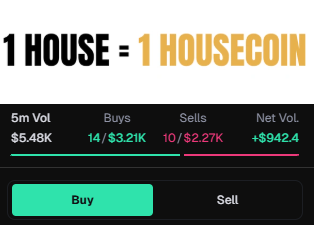
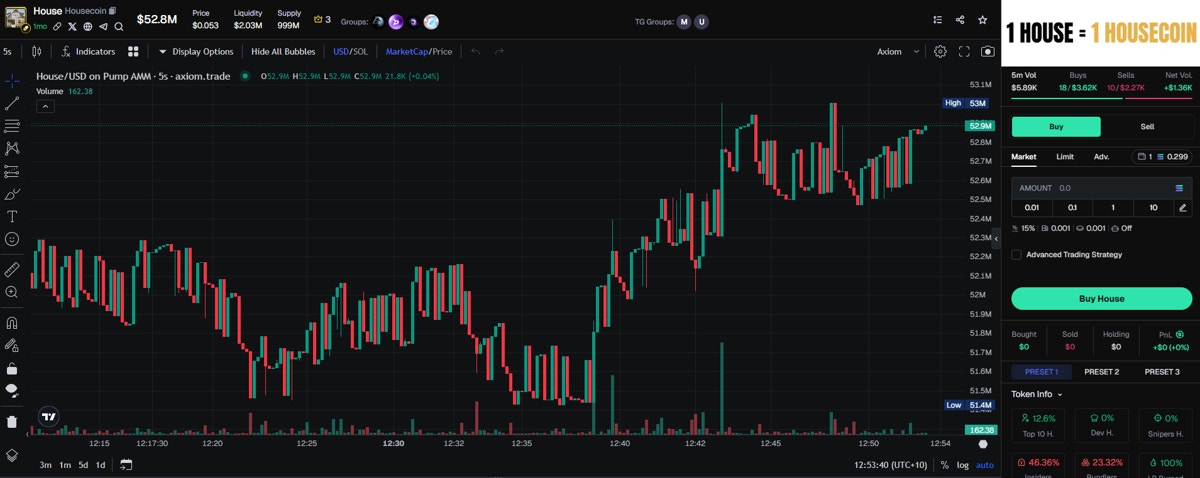 This is enabled by default in the uxtension, but can be disabled via the [Settings](/uxtension#dex-screener-overlay).
uHourly is a volume and meta monitor by uxento, which can be easily accessed at the bottom of your trading platforms footer.
This is enabled by default in the uxtension, but can be disabled via the [Settings](/uxtension#dex-screener-overlay).
uHourly is a volume and meta monitor by uxento, which can be easily accessed at the bottom of your trading platforms footer.
 Updating every hour, uHourly provides insightful statistics into current volume trends, and what types of coins, and how many coins are being launched, and bonded - in real time.
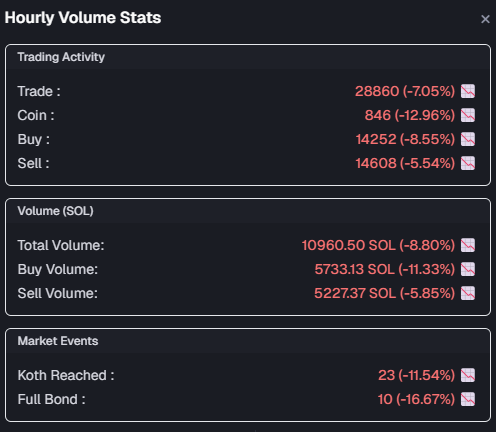
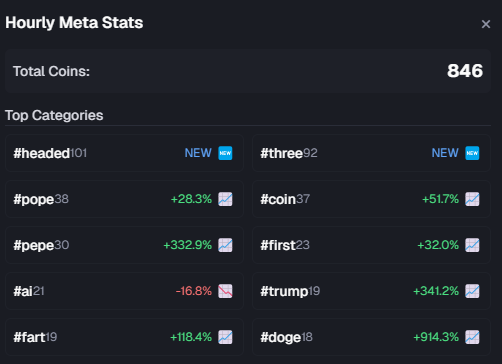 Traders (and devs) can use this as a measure of what coins may perform well and at what times the market is most active.
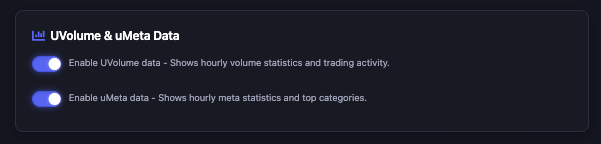
uHourly stats can be enabled/disabled at anytime via the uxtension's settings.
Traders (and devs) can use this as a measure of what coins may perform well and at what times the market is most active.
uHourly stats can be enabled/disabled at anytime via the uxtension's settings.
 uxtension comes with a built-in PNL tracker that can be overlaid on your trading platform allowing you to monitor your gains and losses right on your screen.

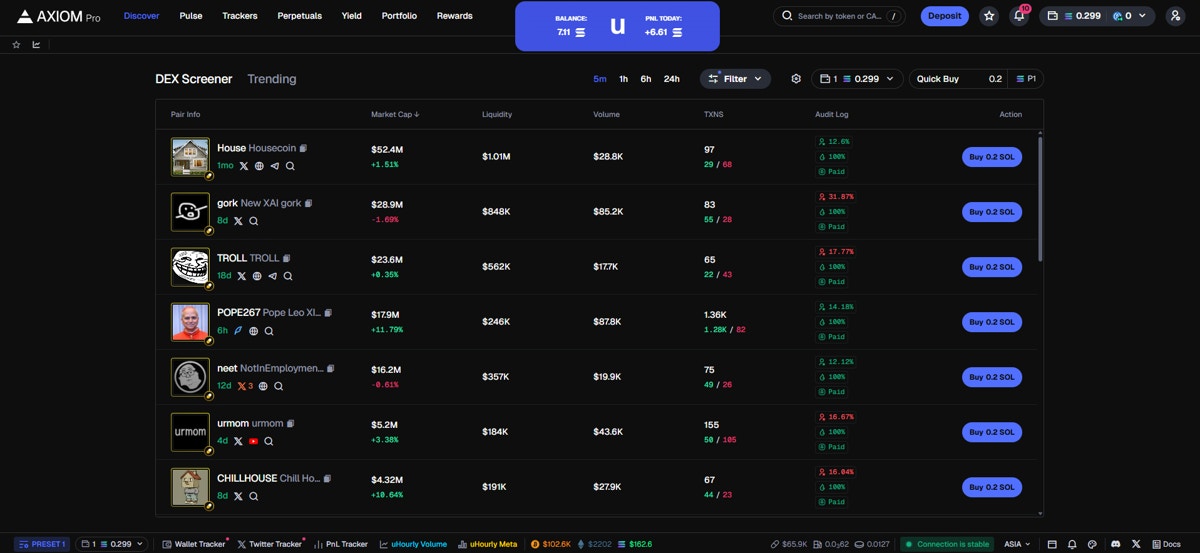 uxtension's PNL tracker also allows you to track multiple wallets.
[Click here to find out how to set up your PNL tracker.](/uxtension#pnl-setup)
#### Create Coins via uxtension:
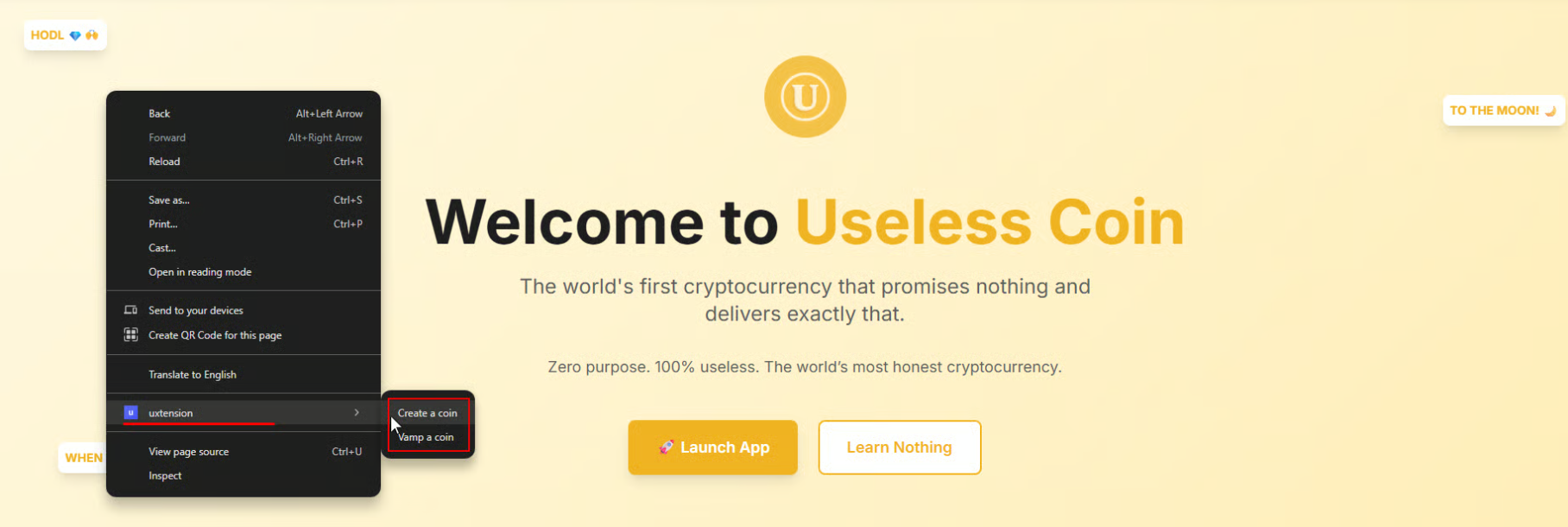
Using uxtension while browsing any website will give you the ability to create tokens instantly via [uDev](/uDev), without leaving the page.
To do this, on any website simply right-click and click **'Create a Coin'** under the uxtension drop-down. uDev will source all relevant info needed with you being able to customize the name and ticker.
uxtension's PNL tracker also allows you to track multiple wallets.
[Click here to find out how to set up your PNL tracker.](/uxtension#pnl-setup)
#### Create Coins via uxtension:
Using uxtension while browsing any website will give you the ability to create tokens instantly via [uDev](/uDev), without leaving the page.
To do this, on any website simply right-click and click **'Create a Coin'** under the uxtension drop-down. uDev will source all relevant info needed with you being able to customize the name and ticker.
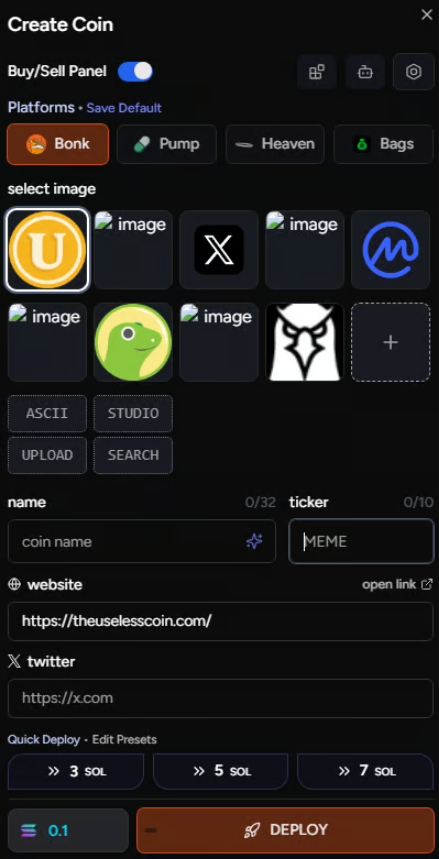 #### Vamp Coins via uxtension:
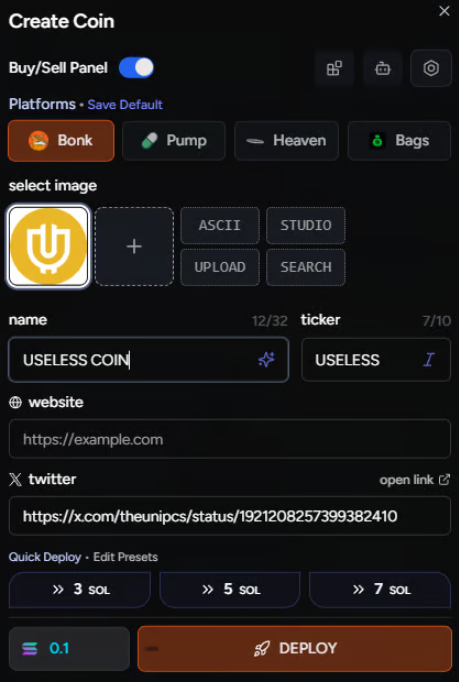
You may also instantly [Vamp Coins](/uDev#vamp-coin) with uxtension via uDev. Simply highlight any CA on your page, right-click and hit **'Vamp Coin'** under the uxtension drop-down.
uDev will retrieve all information needed so that you just have to click 'Deploy' to instantly launch your Vamp Coin.
#### Vamp Coins via uxtension:
You may also instantly [Vamp Coins](/uDev#vamp-coin) with uxtension via uDev. Simply highlight any CA on your page, right-click and hit **'Vamp Coin'** under the uxtension drop-down.
uDev will retrieve all information needed so that you just have to click 'Deploy' to instantly launch your Vamp Coin.
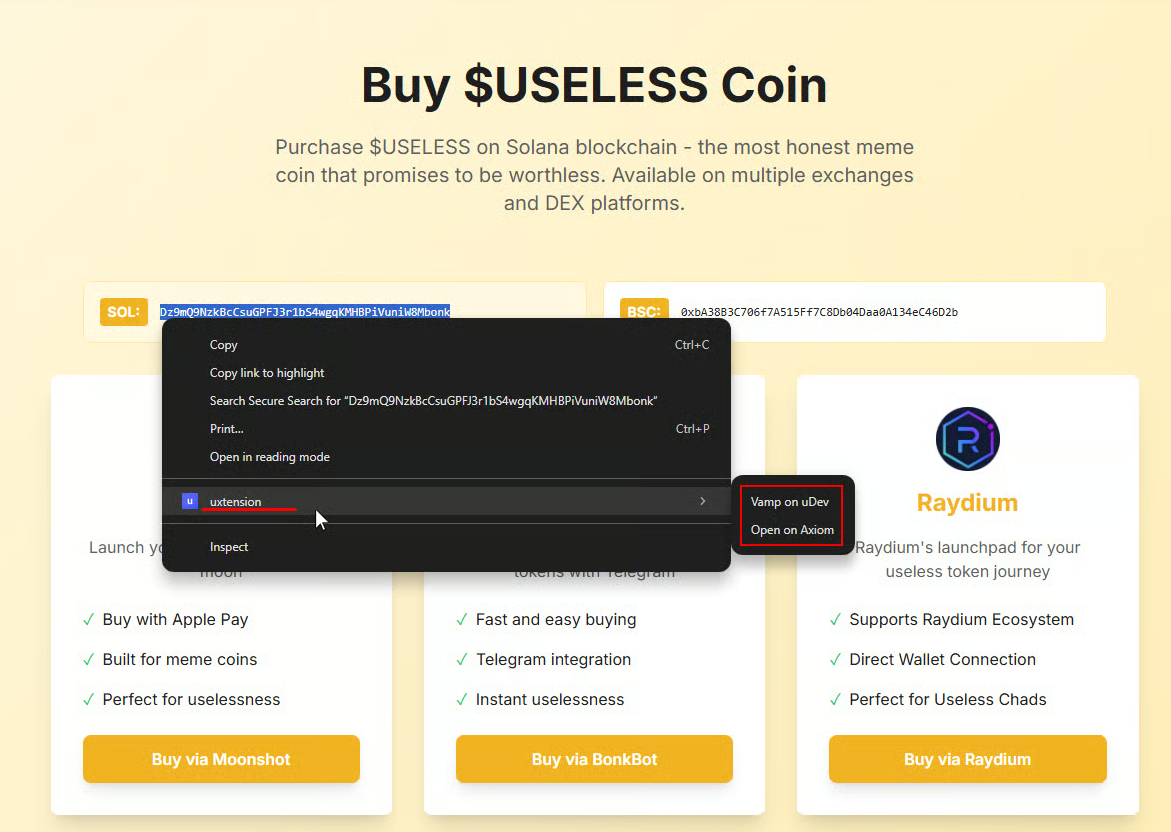
 You can also highlight any CA to quickly open its Token Page on Axiom by clicking **'Open on Axiom'**.
#### Vamp Coins on Axiom with uxtension:
When browsing Axiom with uxtension, you may Vamp coins from Axiom's Pulse page via a token’s Pulse Card. Clicking the white Bat icon will bring up the uDev Creator Module allowing you to further fine tune and deploy your Vamped coin.
You can also highlight any CA to quickly open its Token Page on Axiom by clicking **'Open on Axiom'**.
#### Vamp Coins on Axiom with uxtension:
When browsing Axiom with uxtension, you may Vamp coins from Axiom's Pulse page via a token’s Pulse Card. Clicking the white Bat icon will bring up the uDev Creator Module allowing you to further fine tune and deploy your Vamped coin.
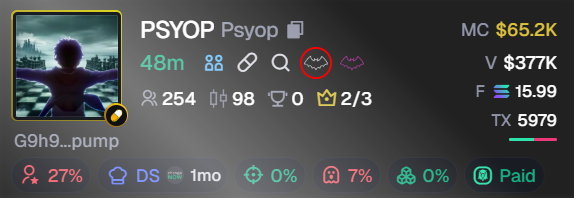 #### Insta Vamp Coins on Axiom with uxtension:
You may also **Insta Vamp** coins with just a single click directly from the Pulse page via a token’s Pulse Card.
To do this, first configure your Insta Vamp settings in the [Advanced Settings panel of the uDev Creator Module.](/uDev#advanced-settings)
Once set, simply click the **purple Bat icon** on any Coin’s Pulse Card. This will automatically open the uDev Creator Module, prefill the necessary data, and launch your Vamped Coin through your [pre-selected default launch platform.](uDev#how-to-launch-coins-with-udev%3A)
#### Insta Vamp Coins on Axiom with uxtension:
You may also **Insta Vamp** coins with just a single click directly from the Pulse page via a token’s Pulse Card.
To do this, first configure your Insta Vamp settings in the [Advanced Settings panel of the uDev Creator Module.](/uDev#advanced-settings)
Once set, simply click the **purple Bat icon** on any Coin’s Pulse Card. This will automatically open the uDev Creator Module, prefill the necessary data, and launch your Vamped Coin through your [pre-selected default launch platform.](uDev#how-to-launch-coins-with-udev%3A)
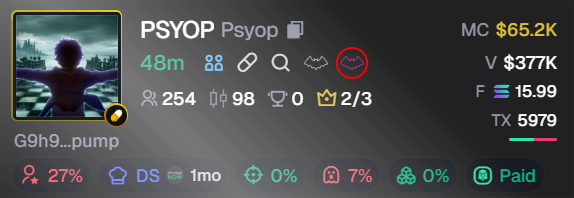 This feature can be toggled on/off via the uxtension's [Settings dashboard.](/uxtension#insta-vamp-on-pulse)
 When using the uxtension on Axiom's Pulse Page, you will notice a range of UI and quality of life changes.
These include:
* [Token Search](/uxtension#CA-tracker)
* [Groups on Pulse](/uxtension#CA-tracker)
* [Silver & Gold Animations](/uxento-vision#silver-%26-gold%3A)
* [uHourly](/uxtension#uhourly)
* [DEX Screener banners & icons](/uxtension#dex-screener-overlay)
* [Show Significant Holders](/uxtension#highlight-significant-holders)
* [Themes](/uxtension#themes)
* [Vamping Coins via Pulse](/uxtension#insta-vamp-on-pulse)
Many of these modifications are also available on other trading platforms such as Padre and Proton.
uxento is continuously developing and updating to deliver a seamless, synchronized experience across multiple platforms; however, for the best uxtension experience we currently recommend using Axiom, with expanded support for additional platforms coming soon.
uxtension and uDev can be used seamlessly within Discord (browser-based only) to create a powerful multi-tool allowing you to trench or launch without leaving the page.
#### uDev in Discord:
uDev features can be enabled within Discord by clicking the uDev button in the top right which will toggle features on or off (you must have the uxtension extension downloaded).
#### Launch Coins via Discord:
After enabled uDev functions on Discord, you will now have the option to launch coins directly from your Discord, including launching coins via discord based X/CT Trackers.
To launch a coin through Discord simply click the uDev button available on any post fetched by your preferred X Monitor; this will bring up the [uDev launcher](/uDev) in which you only need to follow the prompts and continue until you're ready to launch.
When using the uxtension on Axiom's Pulse Page, you will notice a range of UI and quality of life changes.
These include:
* [Token Search](/uxtension#CA-tracker)
* [Groups on Pulse](/uxtension#CA-tracker)
* [Silver & Gold Animations](/uxento-vision#silver-%26-gold%3A)
* [uHourly](/uxtension#uhourly)
* [DEX Screener banners & icons](/uxtension#dex-screener-overlay)
* [Show Significant Holders](/uxtension#highlight-significant-holders)
* [Themes](/uxtension#themes)
* [Vamping Coins via Pulse](/uxtension#insta-vamp-on-pulse)
Many of these modifications are also available on other trading platforms such as Padre and Proton.
uxento is continuously developing and updating to deliver a seamless, synchronized experience across multiple platforms; however, for the best uxtension experience we currently recommend using Axiom, with expanded support for additional platforms coming soon.
uxtension and uDev can be used seamlessly within Discord (browser-based only) to create a powerful multi-tool allowing you to trench or launch without leaving the page.
#### uDev in Discord:
uDev features can be enabled within Discord by clicking the uDev button in the top right which will toggle features on or off (you must have the uxtension extension downloaded).
#### Launch Coins via Discord:
After enabled uDev functions on Discord, you will now have the option to launch coins directly from your Discord, including launching coins via discord based X/CT Trackers.
To launch a coin through Discord simply click the uDev button available on any post fetched by your preferred X Monitor; this will bring up the [uDev launcher](/uDev) in which you only need to follow the prompts and continue until you're ready to launch.
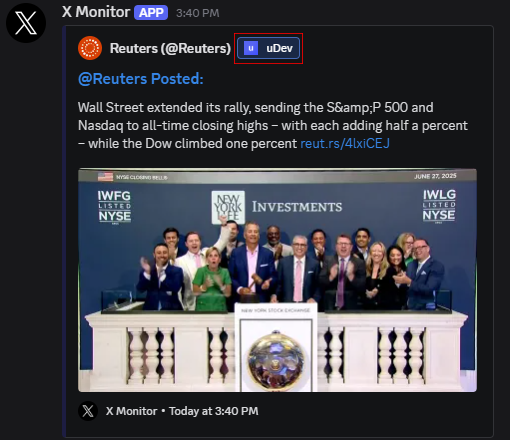 You may also [Vamp Coin](/uDev#vamp-coin) straight from Discord. To do so, simply click the Vampire Icon in the row of uDev buttons on the top right of your Discord page.
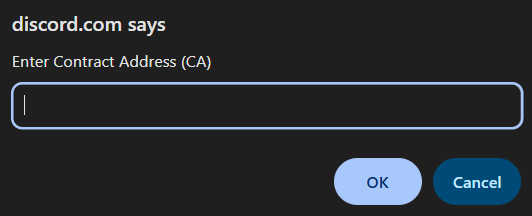
 Clicking the Vamp Coin button in Discord will trigger a pop-up asking you to input the CA of the coin you wish to vamp and then follow the prompts within the uDev Launcher.
 #### Collapse Discord Elements:
Via the uDev toggle buttons located in the top right of your Discord page you can easily collapse certain elements such as your:
* **Channels Sidebar**
#### Collapse Discord Elements:
Via the uDev toggle buttons located in the top right of your Discord page you can easily collapse certain elements such as your:
* **Channels Sidebar**
 * **Channel Info (Header)**
 * **Chat Input**
 * **Toggle Unread Counter**
 Reminder: toggle buttons are green when toggled on!
Utilizing these commands as you preference may allow for a more efficient trenching experience localized within Discord.
#### Highlight Keywords/Usernames:
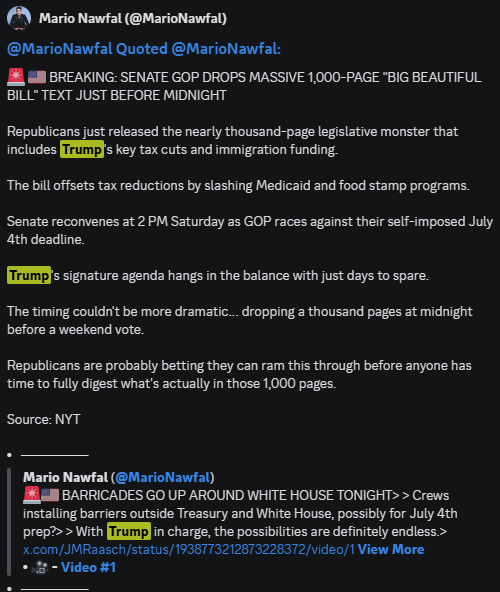
Another useful feature that the uxtension extension provides Discord users is the ability to highlight keywords and usernames for better visibility and more opportunity. To enable this, simply open the uxtension extension while on Discord and toggle on the Message Highlighting option.
Reminder: toggle buttons are green when toggled on!
Utilizing these commands as you preference may allow for a more efficient trenching experience localized within Discord.
#### Highlight Keywords/Usernames:
Another useful feature that the uxtension extension provides Discord users is the ability to highlight keywords and usernames for better visibility and more opportunity. To enable this, simply open the uxtension extension while on Discord and toggle on the Message Highlighting option.
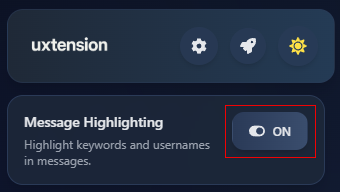 Once you have toggled highlighting on, you can scroll down below the toggle pane to manage custom keywords and usernames. Here you can add any keywords or phrases you wish to keep a special eye on.
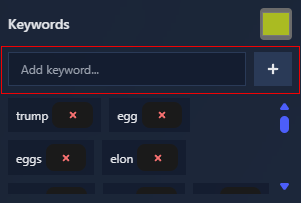 You may also track X usernames via the pane below keywords, simply add the @ handle of the accounts you wish to highlight in your tracker.
By default, uxtension will have some popular keywords and usernames already tracked but allows for further customisation in what you want to focus on, as well as what colors they will be highlighted in.
You may also track X usernames via the pane below keywords, simply add the @ handle of the accounts you wish to highlight in your tracker.
By default, uxtension will have some popular keywords and usernames already tracked but allows for further customisation in what you want to focus on, as well as what colors they will be highlighted in.
 #### Notifications:
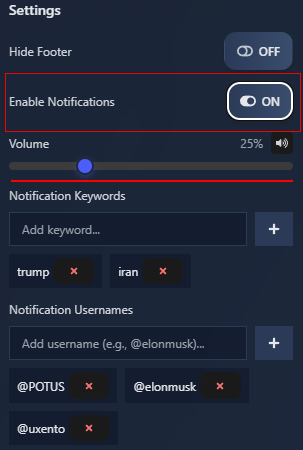
In addition to highlighting useful information on your screen, uxtension also allows you to set custom notification for keywords, phrases and usernames. To enable this, open the uxtension extension while on Discord and navigate to the bottom of the window where you will find the Enable Notifications button.
Once enabled, you can specify keywords and usernames you wish to be notified for as alpha is received. You may also adjust the volume of notifications using the handy slider below the toggle on button.
#### Notifications:
In addition to highlighting useful information on your screen, uxtension also allows you to set custom notification for keywords, phrases and usernames. To enable this, open the uxtension extension while on Discord and navigate to the bottom of the window where you will find the Enable Notifications button.
Once enabled, you can specify keywords and usernames you wish to be notified for as alpha is received. You may also adjust the volume of notifications using the handy slider below the toggle on button.
 ## Settings:
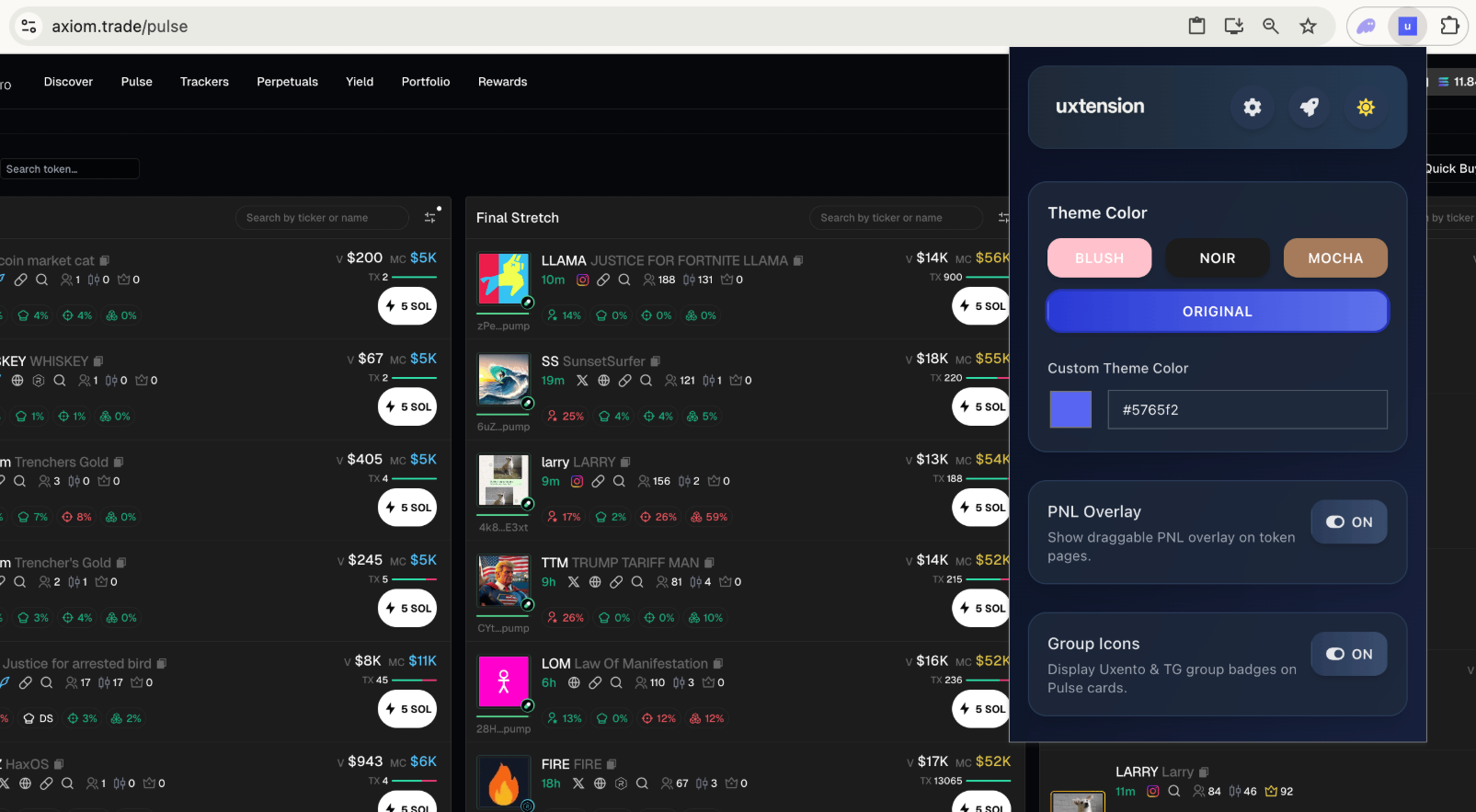
Your settings can be accessed at any time by clicking the Settings icon in your uxtension extension.
While on your trading platform, opening the uxtension will bring up a Quick Settings Panel with a range of easy shortcuts to make your Uxtension experience as efficient as possible.
## Settings:
Your settings can be accessed at any time by clicking the Settings icon in your uxtension extension.
While on your trading platform, opening the uxtension will bring up a Quick Settings Panel with a range of easy shortcuts to make your Uxtension experience as efficient as possible.
 *To adjust any settings, simply open the Uxtension while on your trading platform.*
To enable/disable card animations for Pulse, simply check/un-check the box below:
*To adjust any settings, simply open the Uxtension while on your trading platform.*
To enable/disable card animations for Pulse, simply check/un-check the box below:
 When active, Silver and Gold tokens will have a slight animation to highlight them on your Pulse page.
Another handy function within the uxtension is the ability to **Open Quick Buys in a New Tab**.
To do so, simply navigate to the uxtension settings panel, find the Open Quick Buys in a New Tab window and toggle the button.
When enabled, clicking the Quick Buy button on Pulse will also open the token page in a new background tab.
When active, Silver and Gold tokens will have a slight animation to highlight them on your Pulse page.
Another handy function within the uxtension is the ability to **Open Quick Buys in a New Tab**.
To do so, simply navigate to the uxtension settings panel, find the Open Quick Buys in a New Tab window and toggle the button.
When enabled, clicking the Quick Buy button on Pulse will also open the token page in a new background tab.
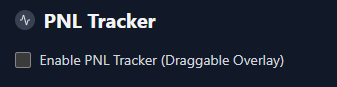
 To enable your PNL tracker, simply tick the below box:
 And then input the wallet/s you wish to track, as well as their starting balance.
Uxento's PNL tracker allows for multi-wallet tracking, just ensure you input separate wallets with a comma.
And then input the wallet/s you wish to track, as well as their starting balance.
Uxento's PNL tracker allows for multi-wallet tracking, just ensure you input separate wallets with a comma.
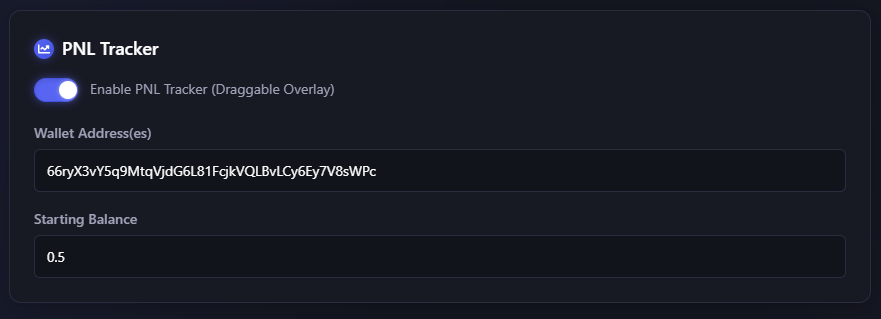 uxtension's PNL tracker features a resizable design which can be dragged anywhere allowing for user customization.
#### Show Groups on Pulse:
To show/hide groups on Pulse, simply check/un-check the box below:
uxtension's PNL tracker features a resizable design which can be dragged anywhere allowing for user customization.
#### Show Groups on Pulse:
To show/hide groups on Pulse, simply check/un-check the box below:
 *When active, Uxento & TG group badges will be displayed under a token's info on Pulse.*
#### Show Groups on Token Page:
To show/hide groups on individual token pages, simply check/un-check the box below:
*When active, Uxento & TG group badges will be displayed under a token's info on Pulse.*
#### Show Groups on Token Page:
To show/hide groups on individual token pages, simply check/un-check the box below:
 *When active, uxento & TG group badges will be displayed on individual token pages.*
There are also a number of global keyboard shortcuts within the uxtension compatible with Axiom to make your trenching experience faster and more efficient.
**These shortcuts include:**
**Token Search:** `Shift + S`
*When active, uxento & TG group badges will be displayed on individual token pages.*
There are also a number of global keyboard shortcuts within the uxtension compatible with Axiom to make your trenching experience faster and more efficient.
**These shortcuts include:**
**Token Search:** `Shift + S`
*Find anything instantly.*
**Wallet Tracker:** `Shift + A`
*Monitor your assets.*
**Pulse Vision:** `Shift + D`
*Market insights.*
These shortcuts if **enabled** will work from any page within Axiom.
By default, shortcuts are enabled but can be disabled/enabled at any time. To do so, navigate to the uxtension settings and scroll down to Keyboard Shortcuts. Toggle on/off as desired.
 Themes are offered for those who want extra customization to their (uxtension-supported) trading platforms.
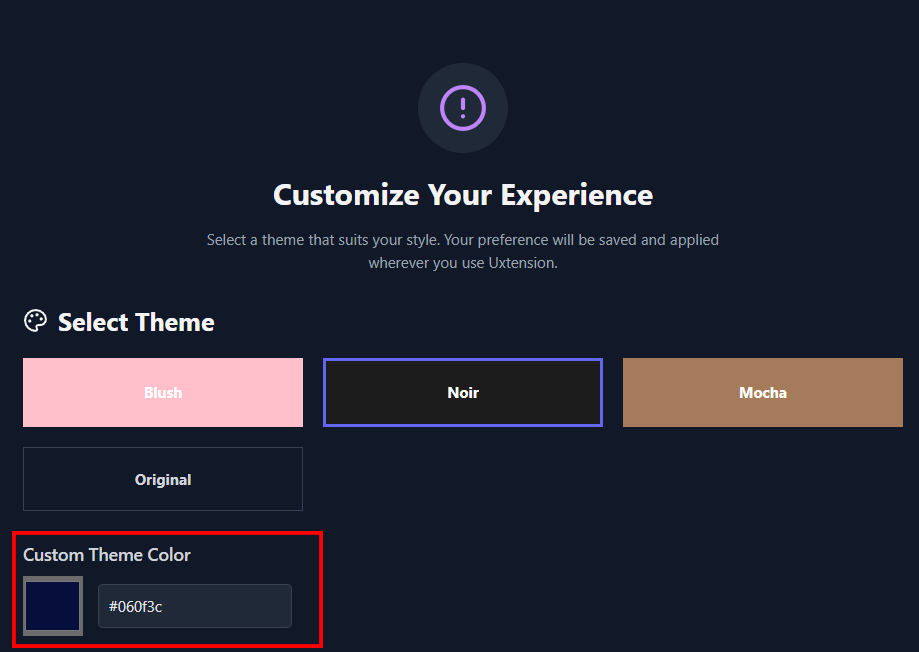 Once selected ensure you refresh your trading platform to see your theme in effect.
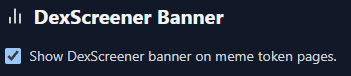
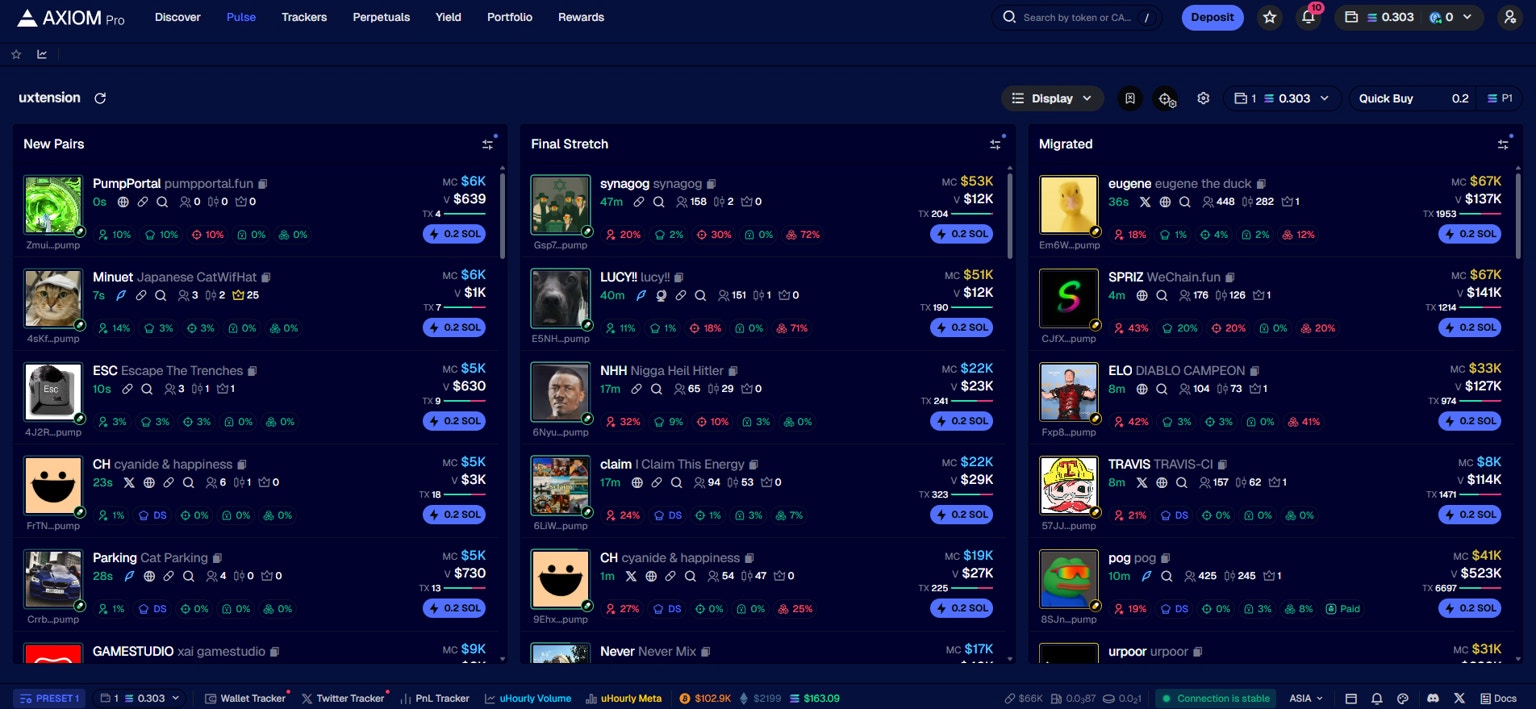 By default, the DEX Screener Banner feature is enabled; however, should you need to disable/re-enable it; simply un-check/check the below box and refresh your trading platform.
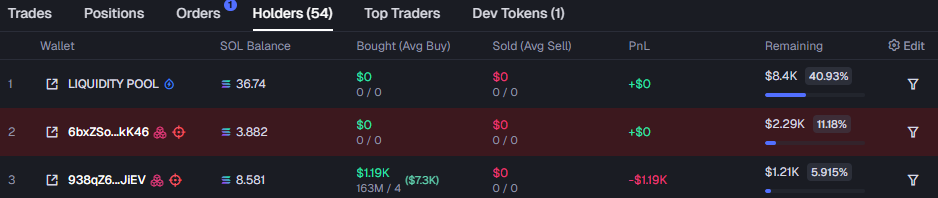
 By default using the uxtension with your trading platform will highlight holders who own 5% of token supplies, however, you can adjust the threshold in which this triggers.
To do so, navigate to the uxtension settings and scroll down to **Highlight Significant Holders**, toggle on the button and adjust the slider to your desired token threshold.
By default using the uxtension with your trading platform will highlight holders who own 5% of token supplies, however, you can adjust the threshold in which this triggers.
To do so, navigate to the uxtension settings and scroll down to **Highlight Significant Holders**, toggle on the button and adjust the slider to your desired token threshold.

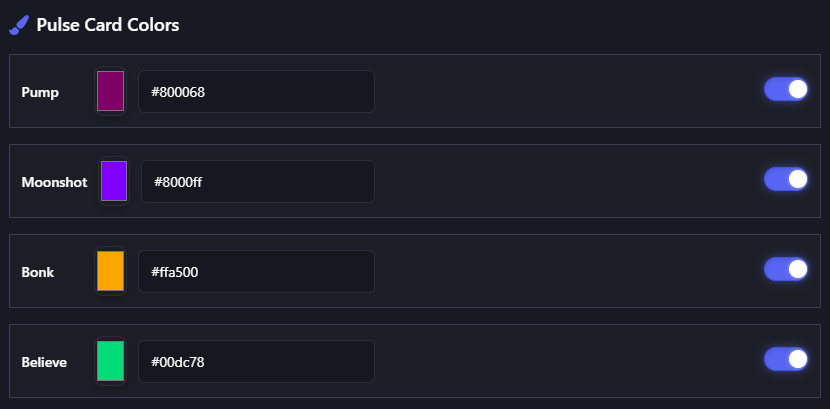
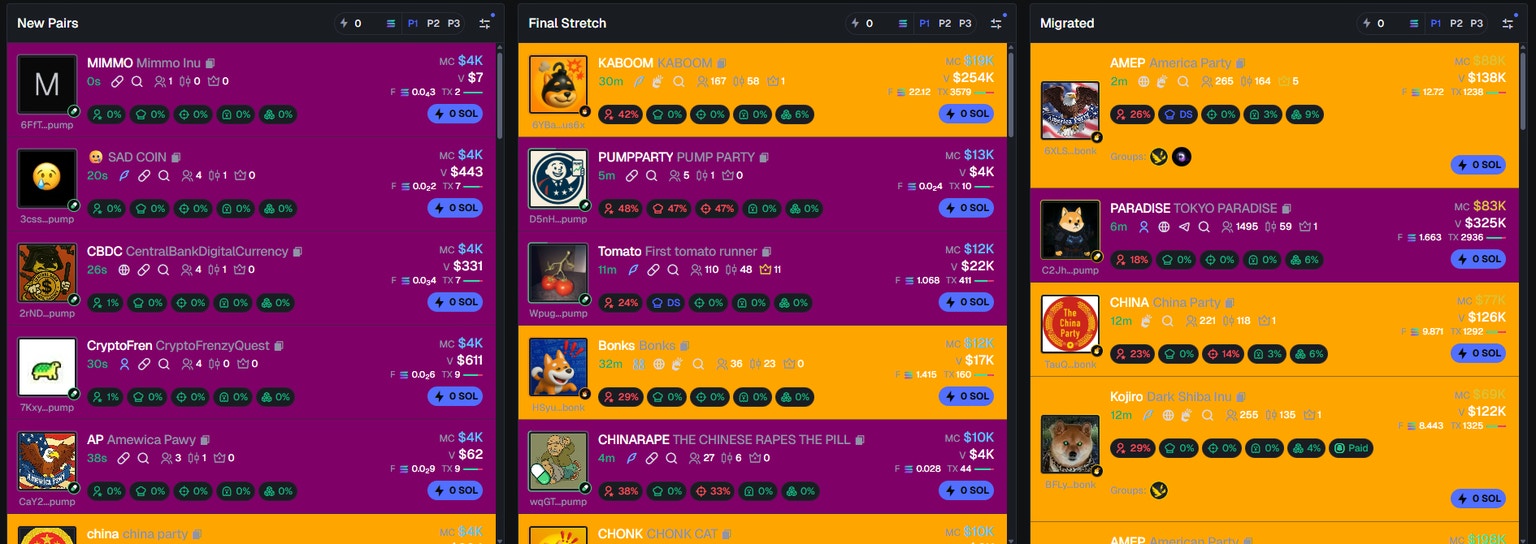
 Another handy feature within the uxtension is the ability to color code all different kinds of cards within Axiom's Pulse page, allowing you to more efficiently view the information you need to.
To do this, simply navigate to the settings page within the uxtension and scroll down to the Pulse Card Colors and toggle on which launchpads you would like to color-code. You may also customize the color of each card by clicking the color-picker or changing the hex code.
Another handy feature within the uxtension is the ability to color code all different kinds of cards within Axiom's Pulse page, allowing you to more efficiently view the information you need to.
To do this, simply navigate to the settings page within the uxtension and scroll down to the Pulse Card Colors and toggle on which launchpads you would like to color-code. You may also customize the color of each card by clicking the color-picker or changing the hex code.
 To enable/disable Insta Vamp on Pulse, simply check/un-check the box below:
**When toggled on,** Vamping Coins via your Axiom Pulse page will be Quick Deployed via the **purple Bat icon.**
To enable/disable Insta Vamp on Pulse, simply check/un-check the box below:
**When toggled on,** Vamping Coins via your Axiom Pulse page will be Quick Deployed via the **purple Bat icon.**
**When toggled off,** the Insta Vamp Icon will be hidden.
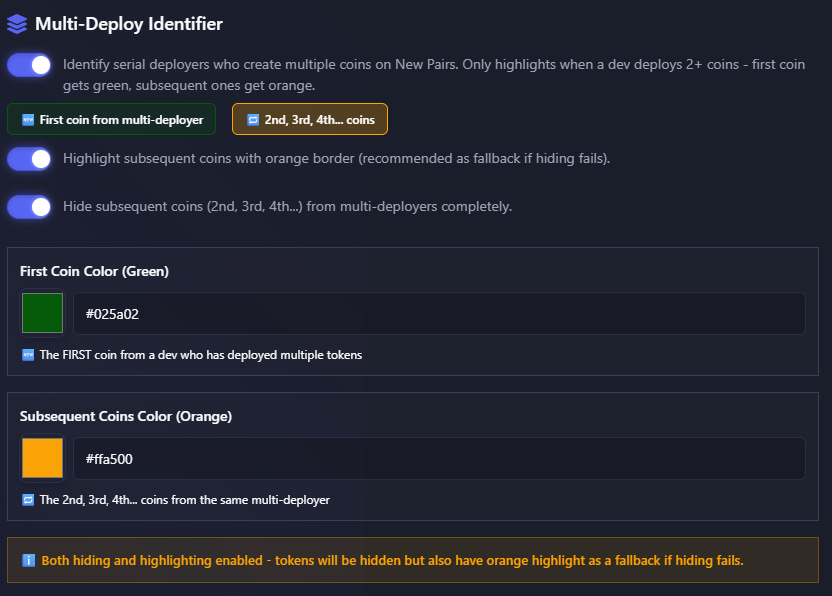
uxtension also allows you to identify serial deployers who create multiple coins on New Pairs. You may then choose to highlight, or hide these tokens.
The first coin identified as a **‘Multi-Deploy’** token will be highlighted in Green, and any subsequent coins can either be hidden entirely or highlighted in Orange.
If you choose to have both options enabled, tokens will be hidden but will also be highlighted in Orange as a fallback should hiding fail.
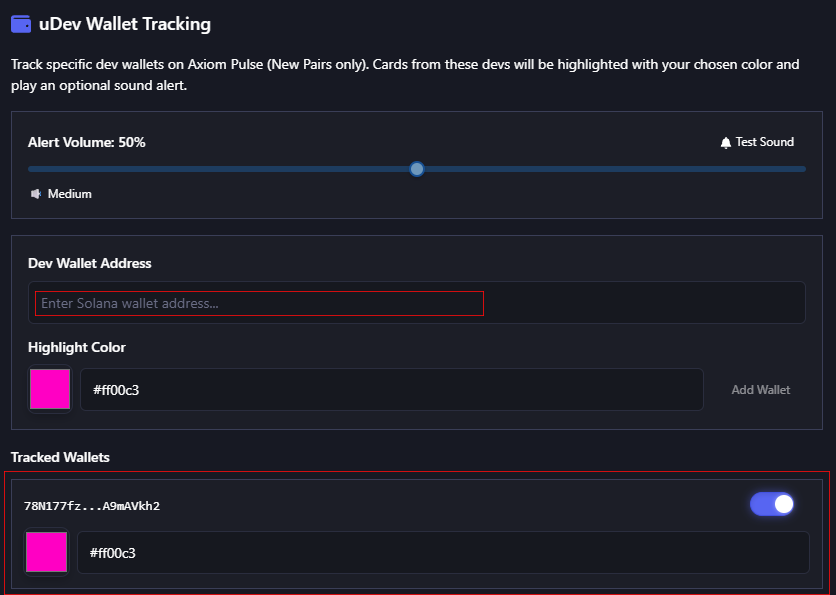
 Via uxtension, you may also track specific developer wallets on Axiom Pulse (New Pairs only). Cards from these devs will be highlighted with a chosen color and play an optional sound alert.